

How to Add Grid & Pixel Graphics to Your Klaviyo SMS Campaigns & Flows with Live Embed Code
Adding a personalized graphic to your SMS campaigns and flows is simple with Grid and Pixel. Once you’ve customized your SMS graphic in the Grid & Pixel app, follow these steps to export it into Klaviyo.
1. Generate your code snippet
Click the purple “Add to SMS” button
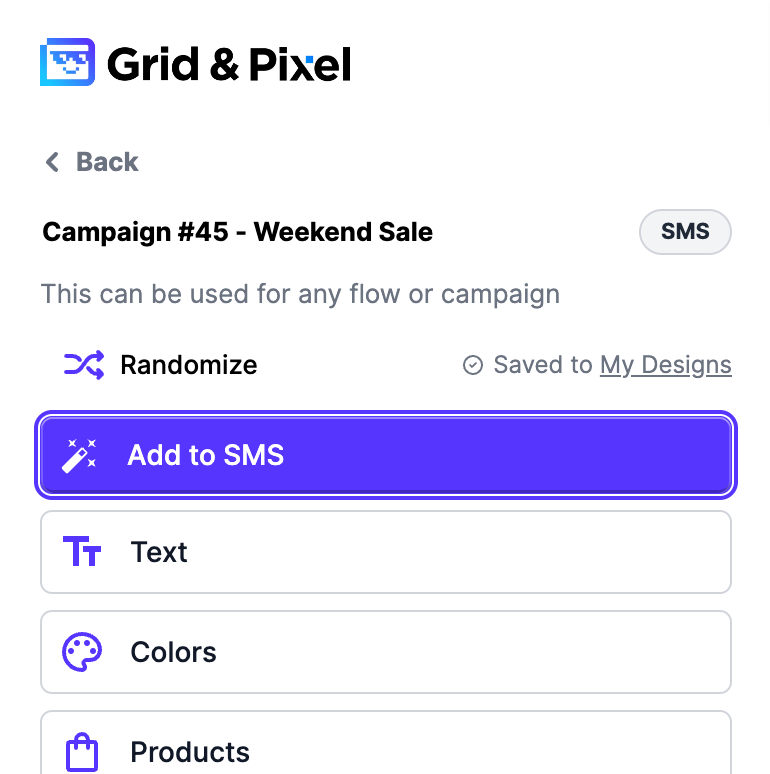
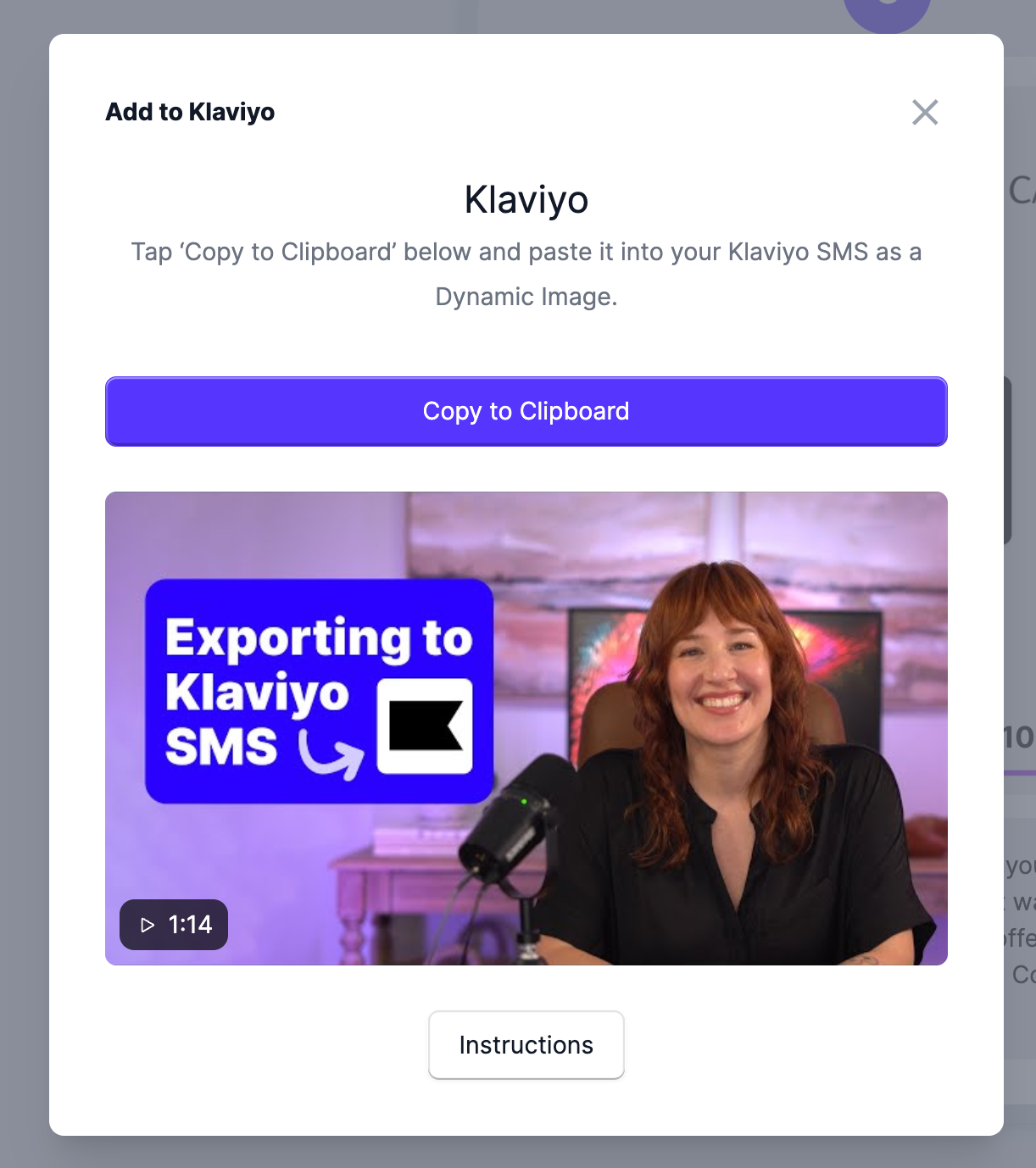
2. Copy your code snippet
Click “Copy to Clipboard” to copy the code snippet.
3. Paste your code snippet into Klaviyo
Open the campaign or flow with your SMS message.
Click the Image Icon
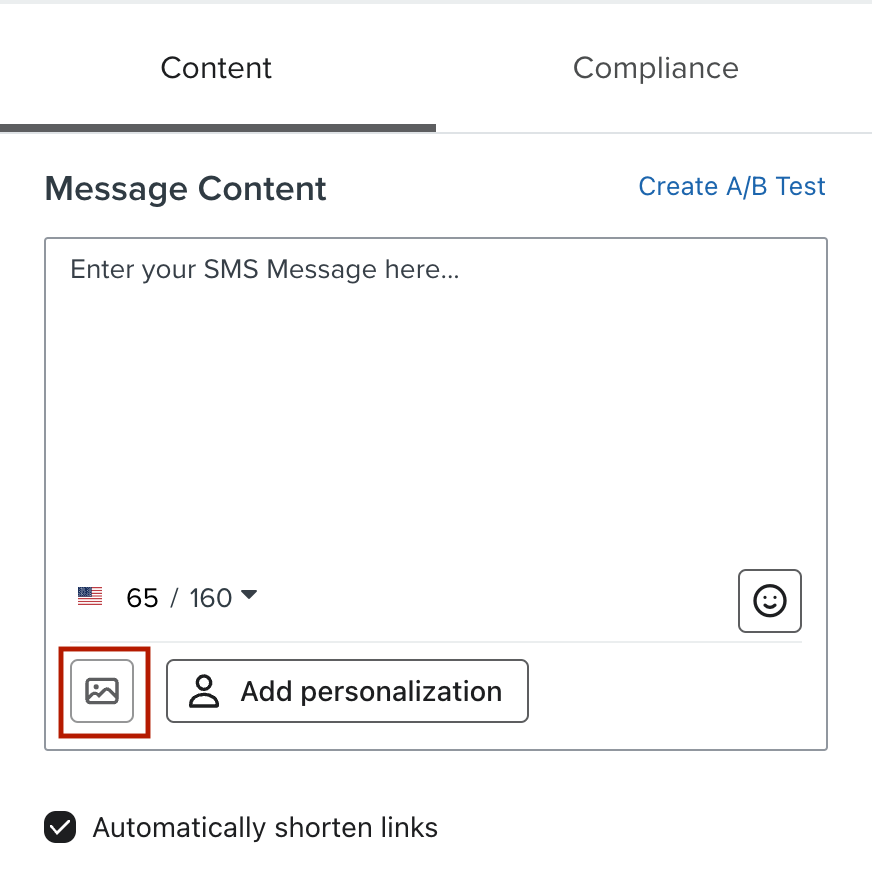
Select Dynamic Image from the list on the left side of the modal.
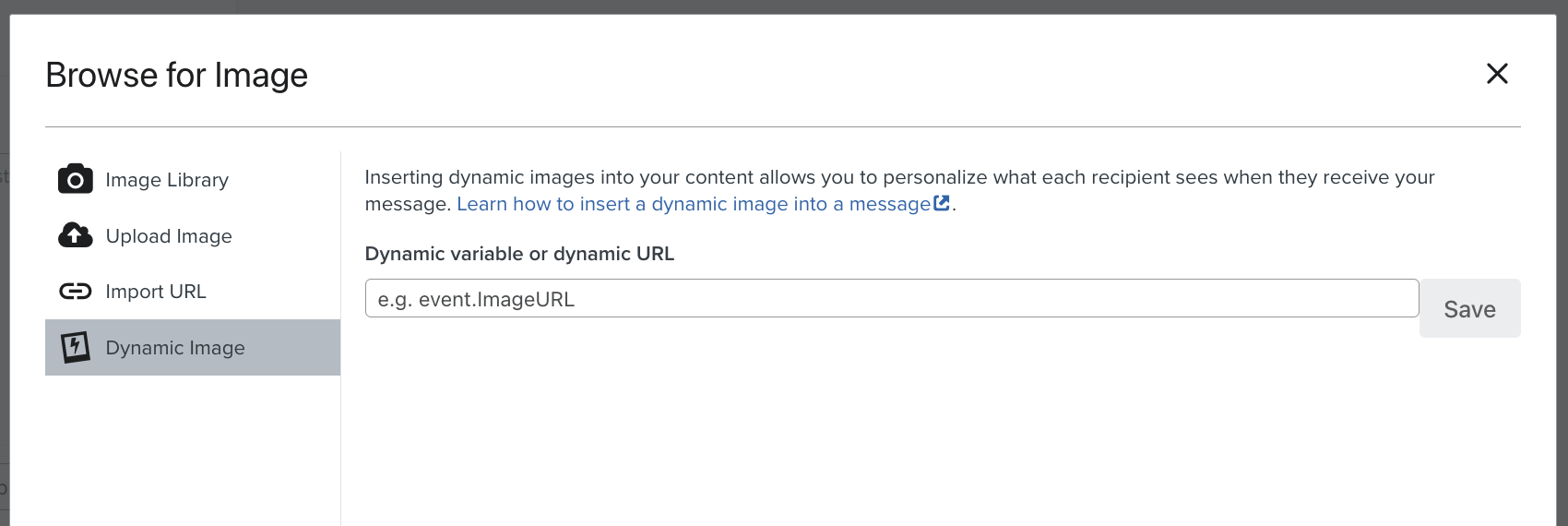
Paste your snippet into the Dynamic variable or dynamic URL field.
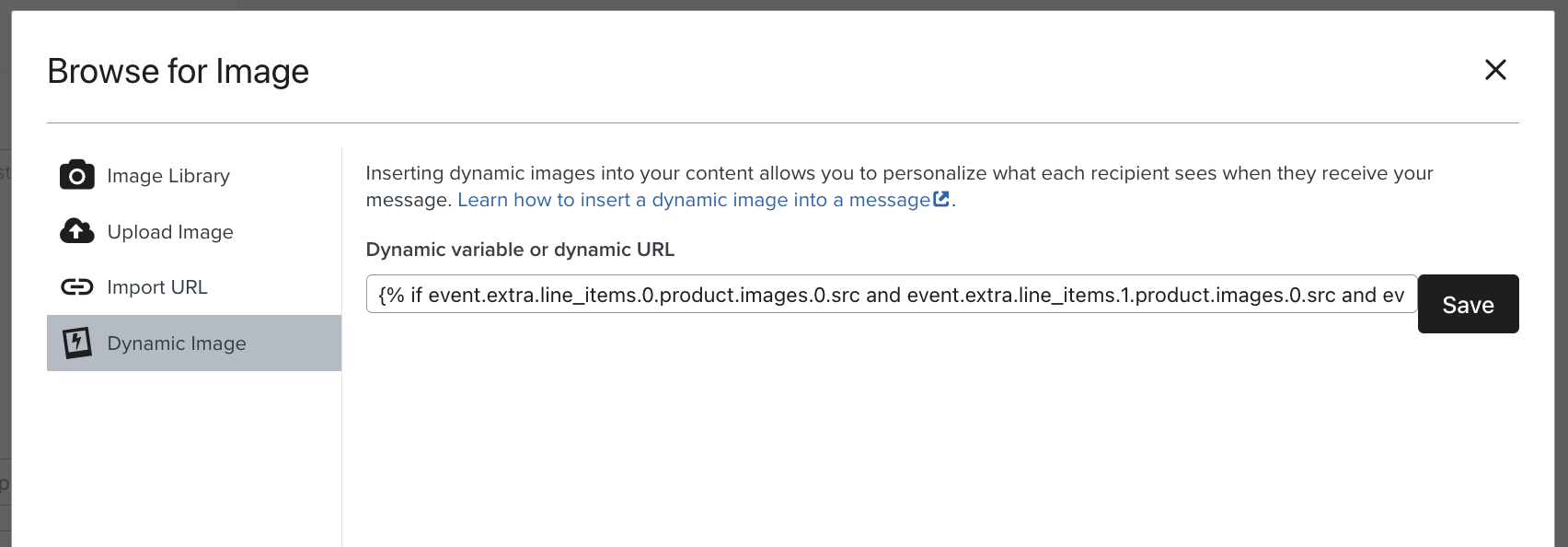
Click Save.
4. Preview and test
You should see your graphic appear in the mobile preview.
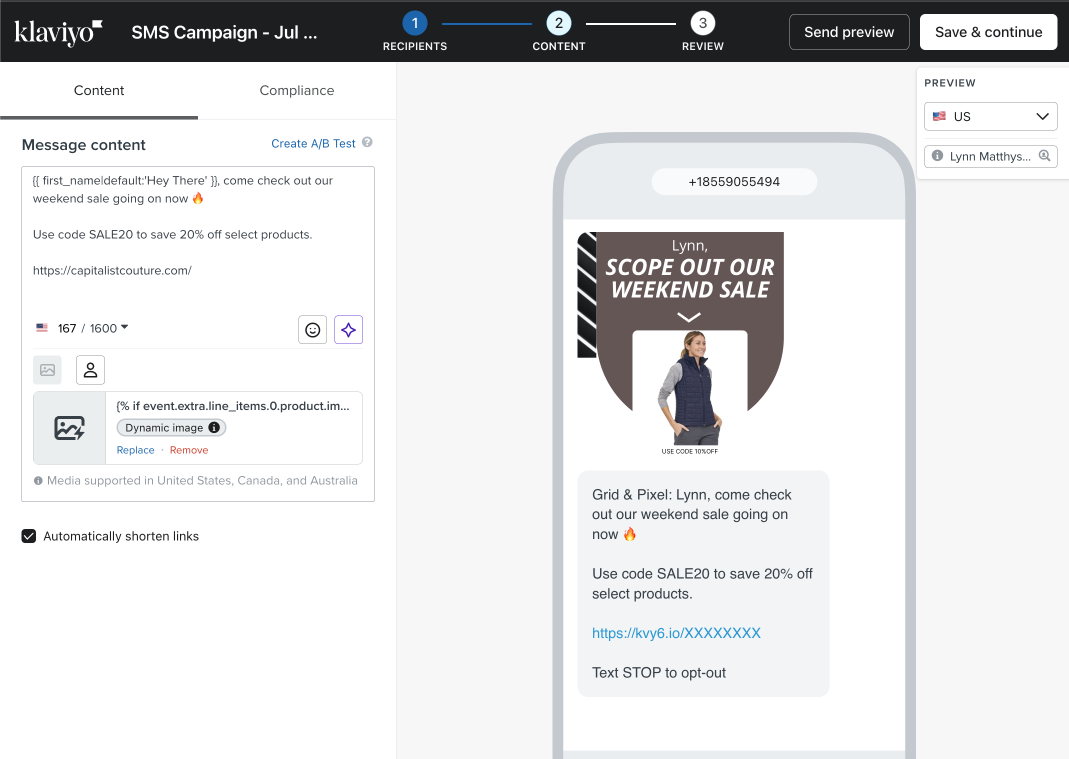
Don't forget to add extra personalization, such as customer name, and special links in your Message Content box!
If you’re in a Campaign, you can choose different profiles in the Preview window in the top-right to see how it appears to different customers.
If you’re in a Flow, you’ll see eligible subscribers appear in the Preview window in the top-right. You can cycle through them to see how the imagery changes based on our AI engine recommendations.