

Granting Access to Grid & Pixel
To ensure the Grid & Pixel team has the necessary permissions to manage your email flows, campaigns, and discounts, follow the steps provided for your specific email platform below.
Klaviyo
Step 1
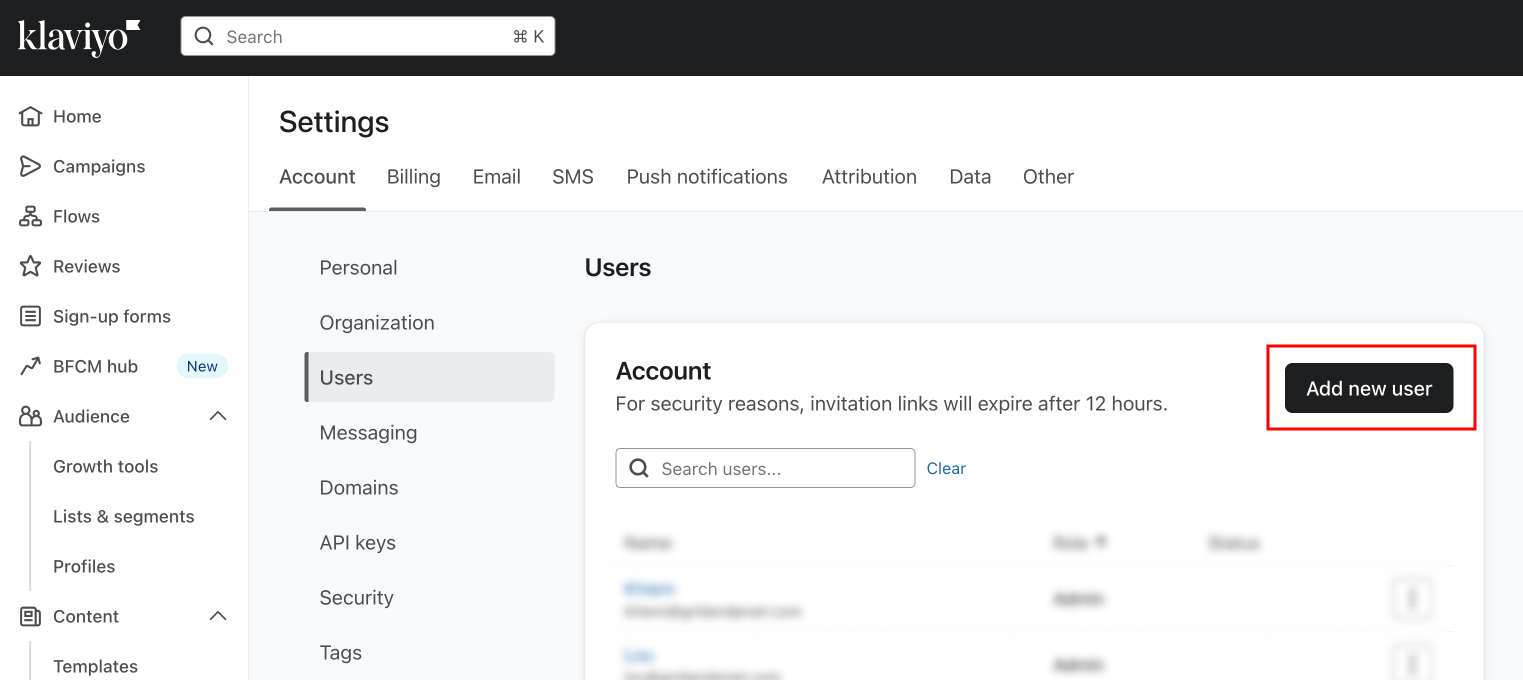
Under Settings > Users, tap the Add new user button
Step 2
Invite the following user as Admin
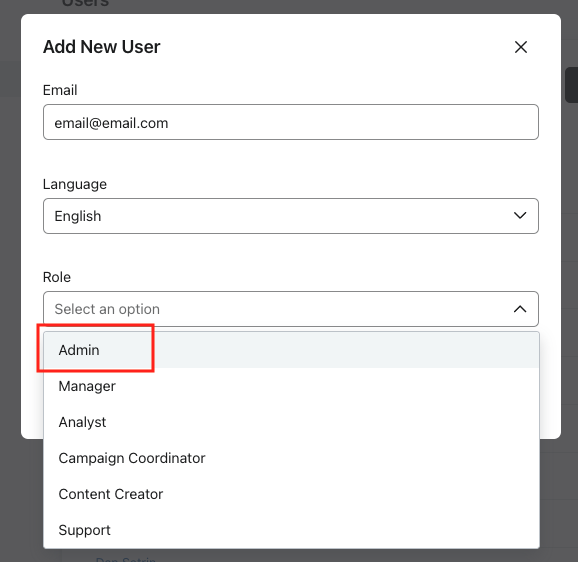
Important: Invites should be sent as a Admin Role in order to have all necessary permissions to set up your complete flows, segments and for API access.
Other Options
Other Options
We strongly recommend inviting us with the Admin Role. This ensures the smoothest service, access to all features, and the fastest turnaround time. Admin access allows us to set up flows, segments, and integrations efficiently so you can start seeing results right away.
That said, we completely understand that some stores prefer a more limited level of access. If you’re not comfortable assigning Admin, you can invite us with the Manager Role instead by adding the following users:
Please note: Manager access does limit certain features and may slow down implementation.
Regardless of the role you choose, your account integrity is our top priority. We will never make changes to your store without your approval. Our access is strictly to help you get the most out of your email and SMS marketing — nothing more.
If your flows require use of Shopify discounts rather than Klaviyo coupons, our team may send a Shopify Collaborator request to your account to manage those discounts that you will need to approve.
Shopify Email
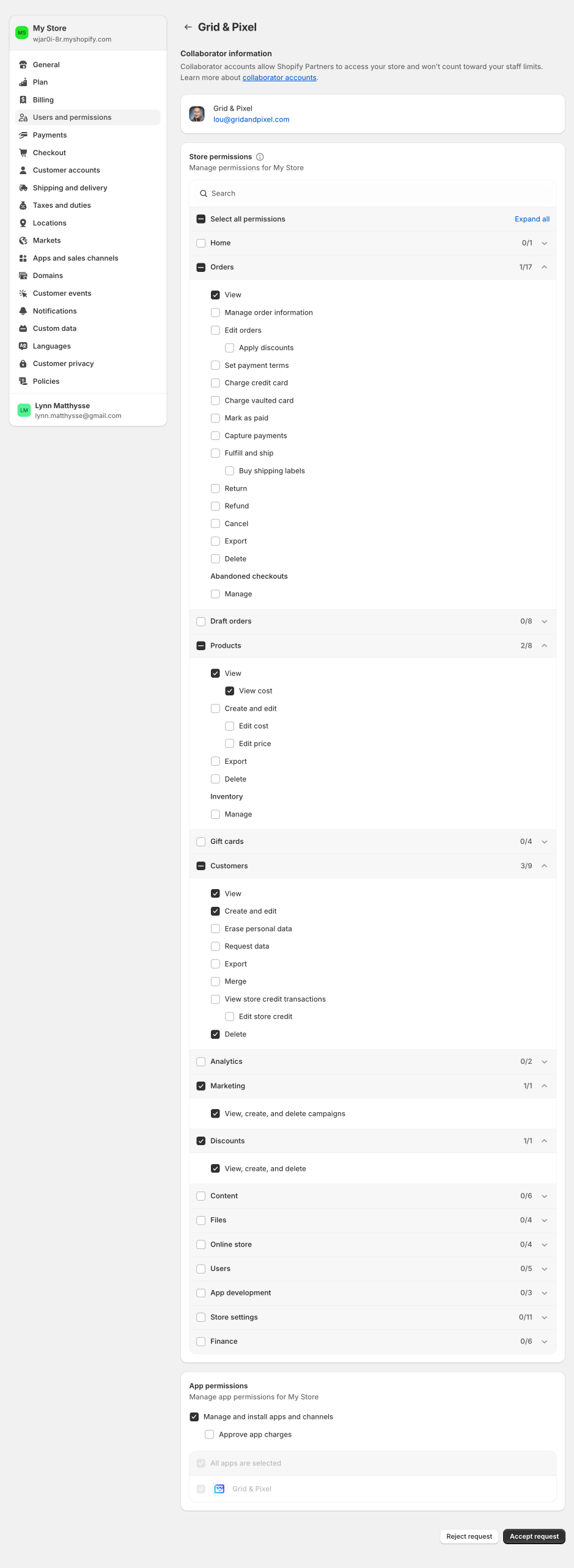
Our team will send a Collaborator request with the appropriate permissions for approval.
Step 1
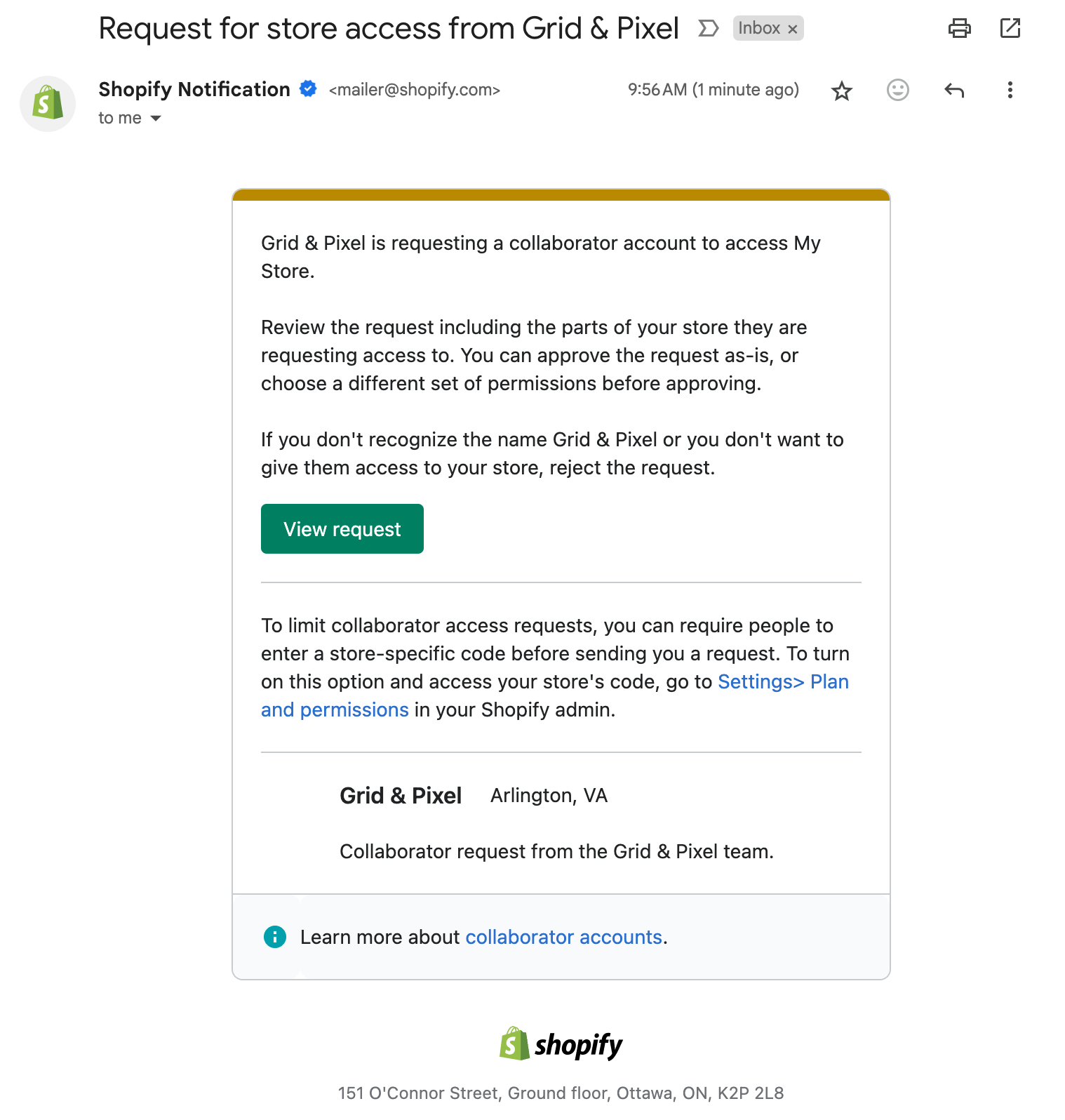
Check your email for a Collaborator request from Grid & Pixel and tap View request
Step 2
Inside Shopify admin under Settings > Users & permissions, tap Review request
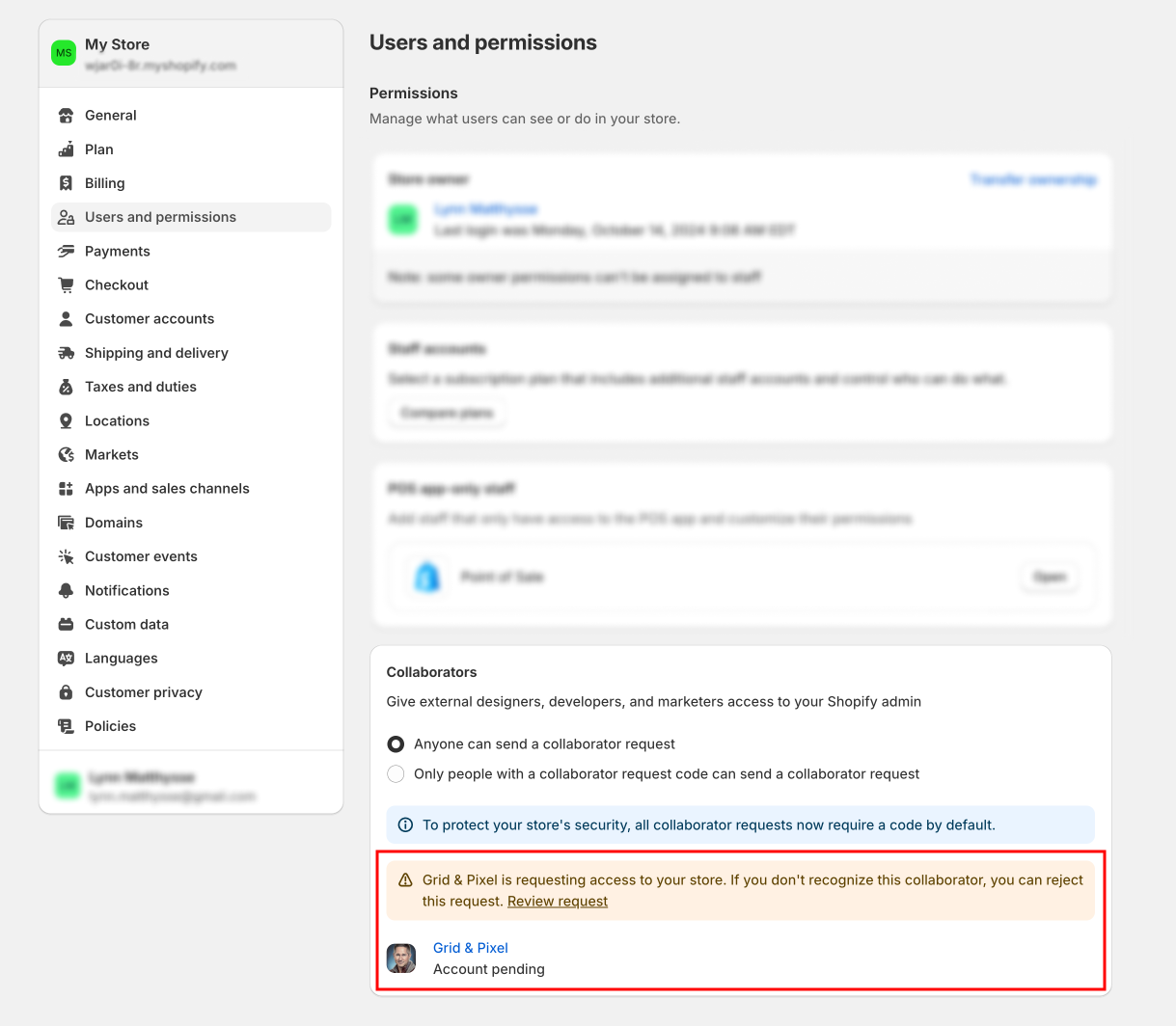
The email sender of the request will come from Grid & Pixel, but the email address of the request will be [email protected].
Step 3
Tap Accept request to approve the correct permissions.
Please note Shopify requires that we have the below permissions to fully
manage your automations through Shopify Email and Shopify Flow.
Limiting of permissions may delay your implementation timeline.
Omnisend
Step 1
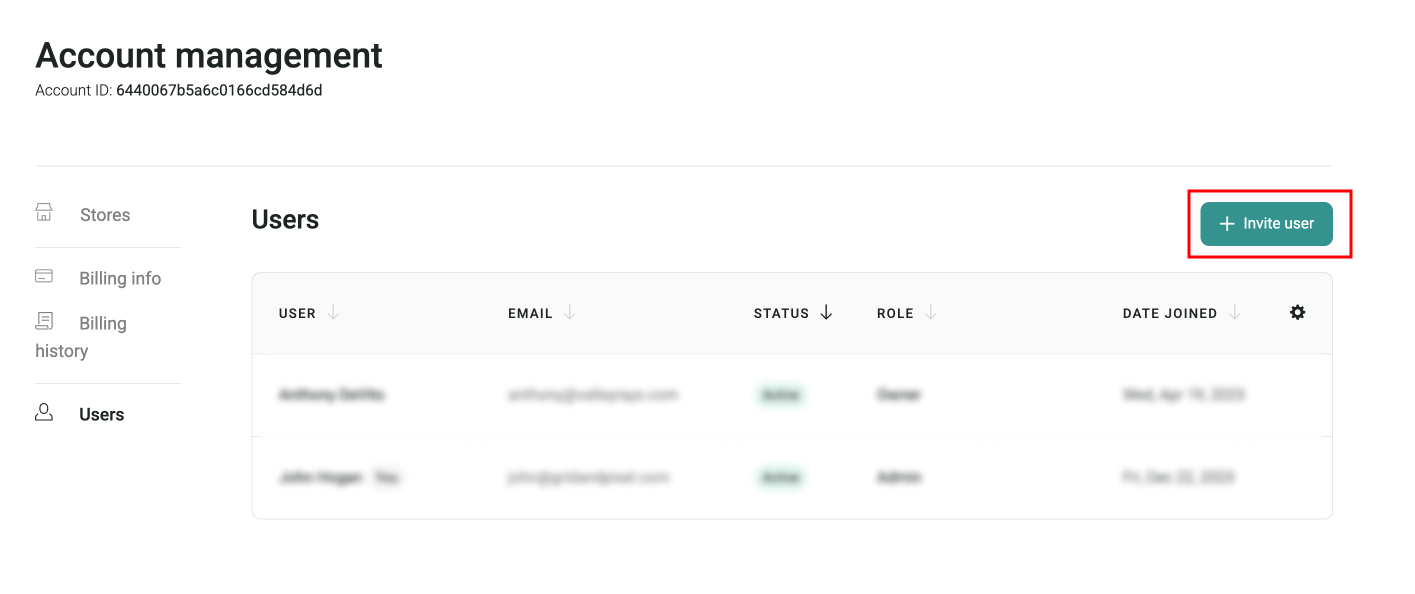
Under Account management, select Users and then tap + Invite user
Step 2
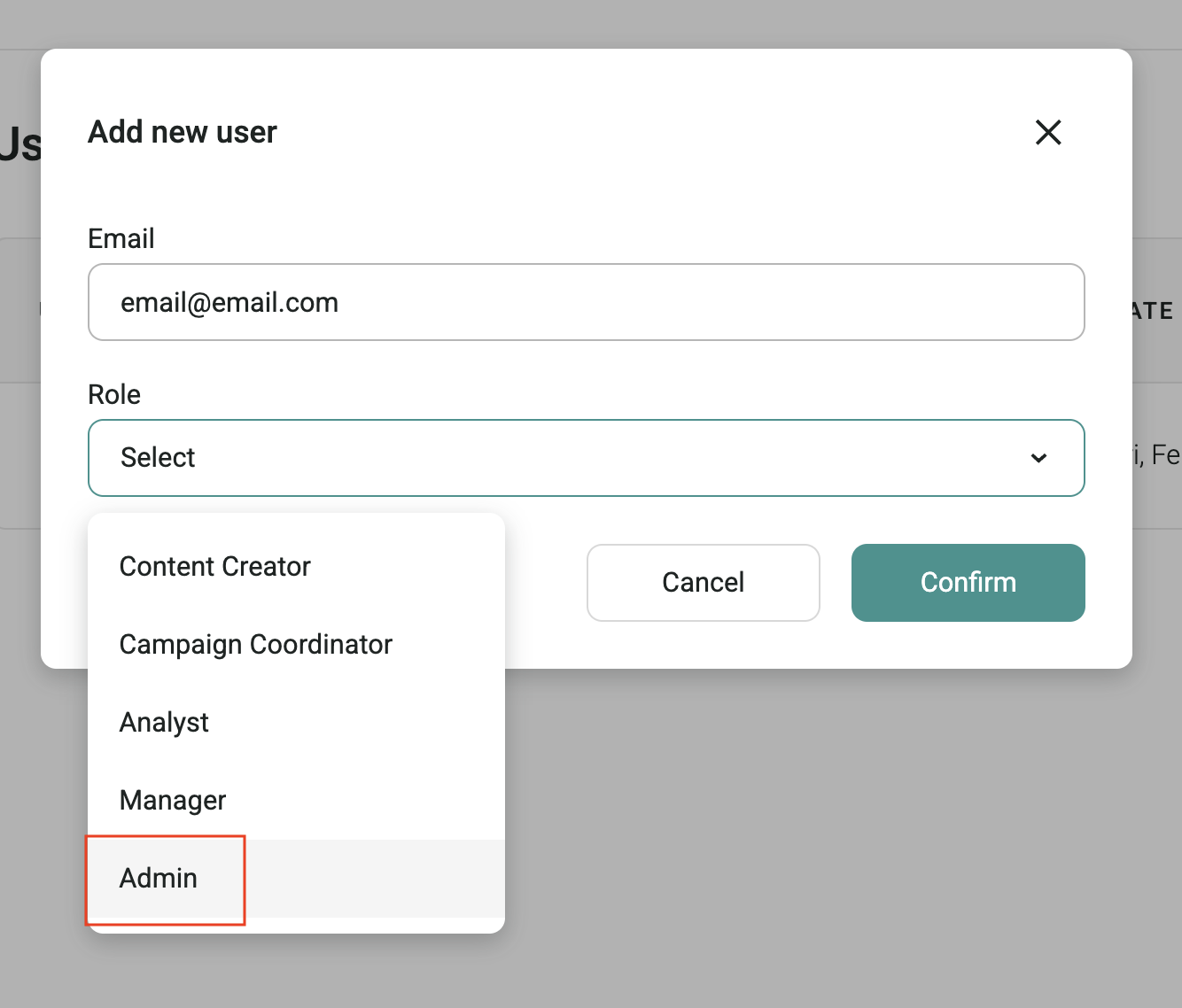
Invite the following user as Admin
Important: Invites must be sent as a Admin Role in order to have all necessary permissions to set up your complete flows.
If your flows require use of Shopify discounts, our team may send a Shopify Collaborator request to your account to manage those discounts that you will need to approve.
Sendlane
Step 1
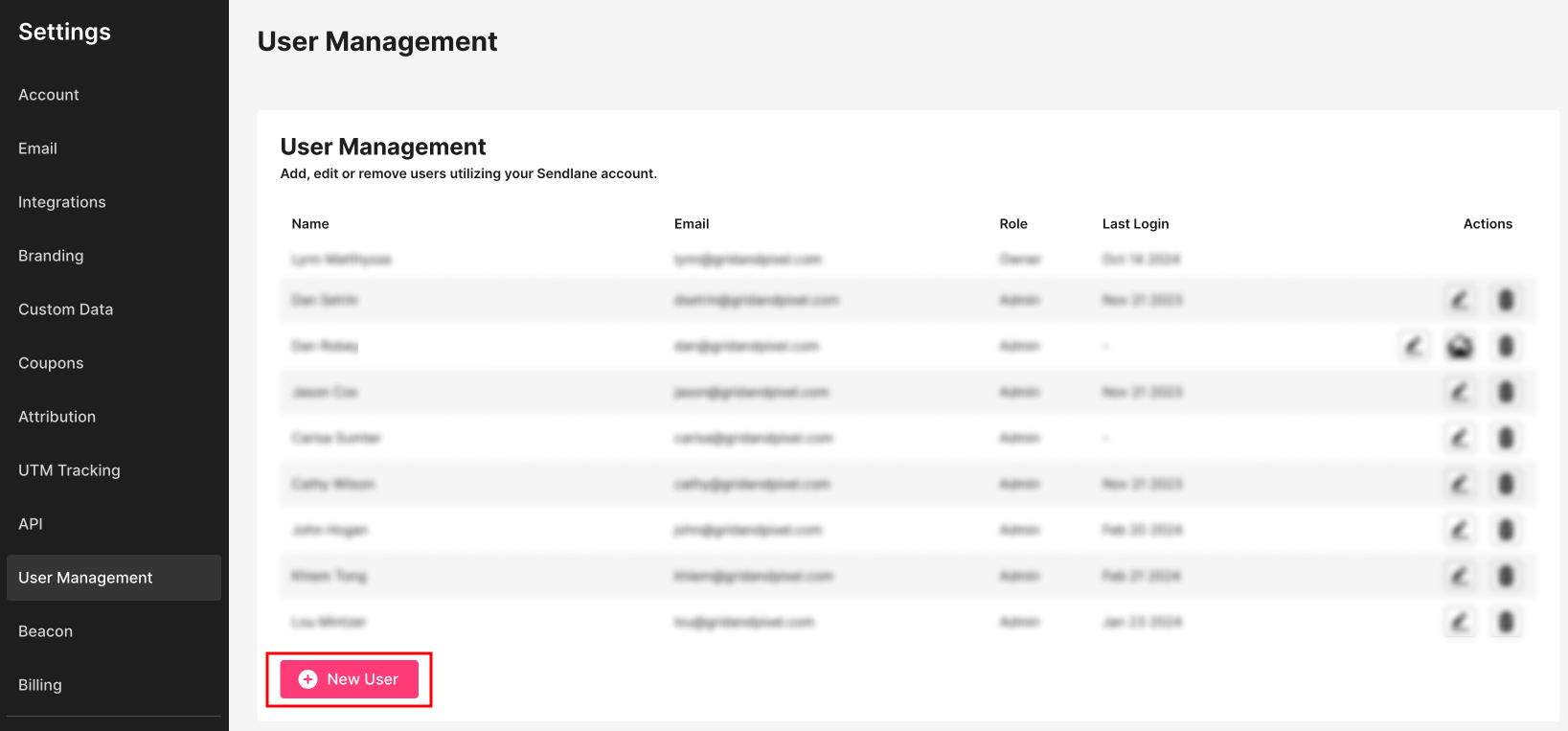
In your account settings, select User Management and then tap New User
Step 2
Invite the following users as Managers
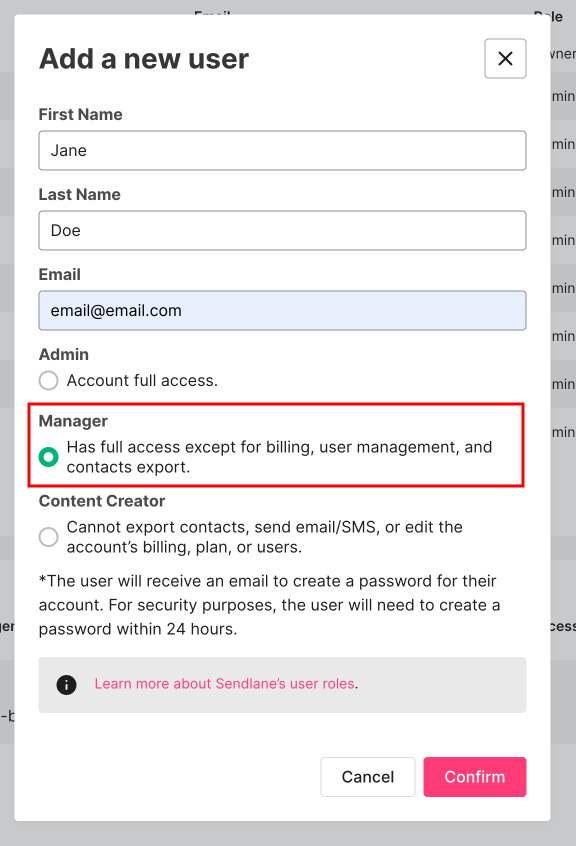
Important: Invites must be sent as a Manager in order to have all necessary permissions to set up your complete flows.
If your flows require use of Shopify discounts, our team may send a Shopify Collaborator request to your account to manage those discounts that you will need to approve.
Having any trouble? Contact us and we'll be happy to help.