---
title: How to Generate a Product Scene in Grid & Pixel
description: 1. Go to the Products tabClick on the Products tab on the left side of the page. Click on the purple AI toggle under Product Images and switch it to “off” to...
---
[Skip to content](https://help.gridandpixel.com/en-us/grid-and-pixel-help-center/how-to-tutorials/how-to-generate-a-product-scene-in-grid-pixel#main-content)
English - United States
Show submenu for translations
[.png?width=226&height=35&name=Grid%20%26%20Pixel%20Logo%20(1).png)](https://gridandpixel.com)
Open main navigation
Close main navigation
- English - United States
Show submenu for translations
Grid & Pixel Support
- There are no suggestions because the search field is empty.
1. [Grid & Pixel Help Center](https://help.gridandpixel.com/en-us/grid-and-pixel-help-center?hsLang=en-us)
2. [How-To Tutorials](https://help.gridandpixel.com/en-us/grid-and-pixel-help-center/how-to-tutorials?hsLang=en-us)
July 30, 2026
# How to Generate a Product Scene in Grid & Pixel
## Click on the Products tab on the left side of the page. Click on the purple AI toggle under Product Images and switch it to “off” to see your product catalog.
## [Copy link](https://help.gridandpixel.com/how-to-tutorials/how-to-generate-a-product-scene-in-grid-pixel?hsLang=en-us#h_d3e970a384)1. Go to the Products tab
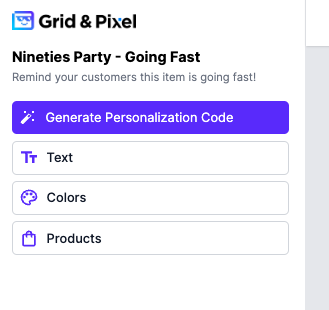
Click on the **Products** tab on the left side of the page. Click on the purple AI toggle under **Product Images** and switch it to “off” to see your product catalog.
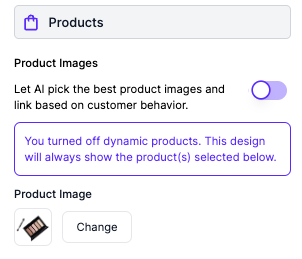
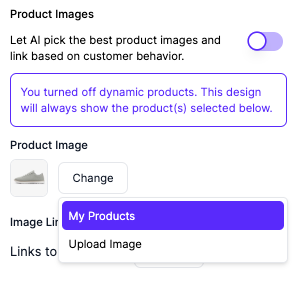
## [Copy link](https://help.gridandpixel.com/how-to-tutorials/how-to-generate-a-product-scene-in-grid-pixel?hsLang=en-us#h_8fba9b79e2)2. Select the product you want to update
Click on the **Change** button and then select **My Products** to view your product catalog.
Select a product from your catalog to update.
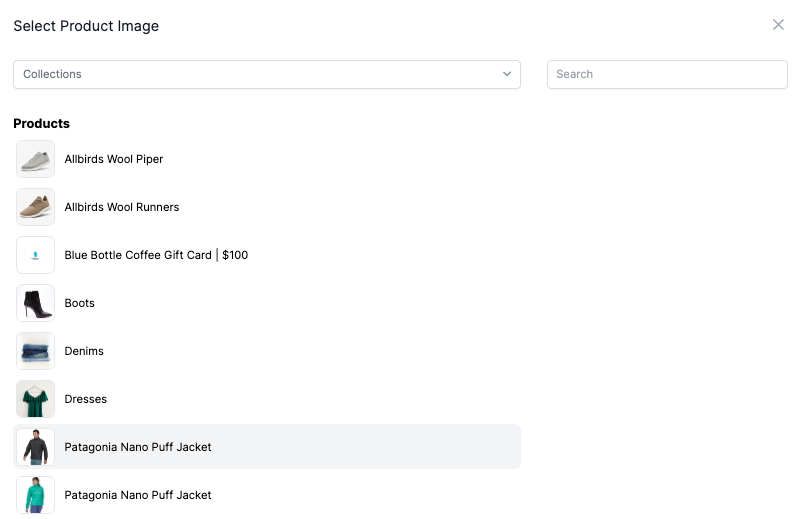
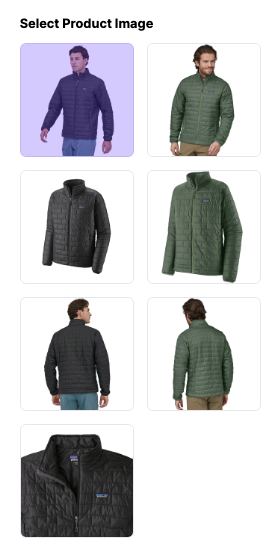
Once you select your product, you’ll see all the product images associated with that product. Select the image you’d like to update and use in your graphic.
## [Copy link](https://help.gridandpixel.com/how-to-tutorials/how-to-generate-a-product-scene-in-grid-pixel?hsLang=en-us#h_73b4d38f2a)3. Generate your new product background
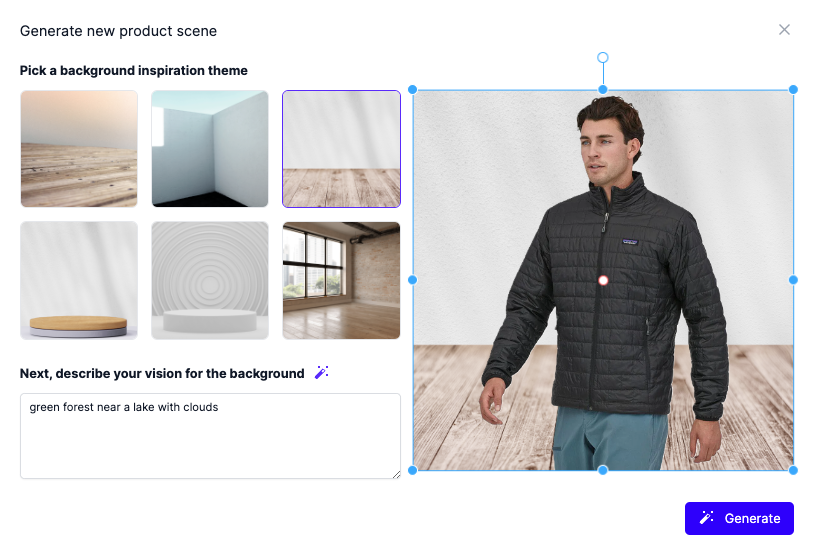
Click the purple **Generate Scene** button to change the background.
Pick a background inspiration theme to serve as the foundation for your new background. Then, enter a prompt for our AI engine where it says “Next, describe your vision for the background.”
Try to be as specific as possible to really hone in on the specific vision you’re looking for. It’ll take 10-15 seconds for our AI engine to generate your scene.
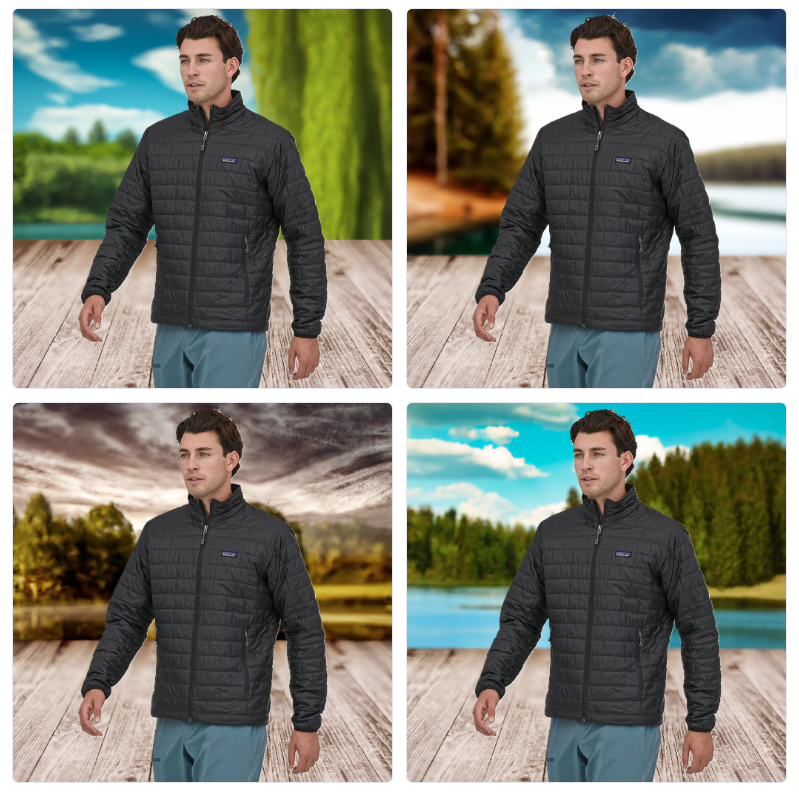
You’ll be shown four options. You can select your favorite from those options, or you can go back and tweak the prompt. Even small changes to the prompt can have a big impact on the scenes generated.
## [Copy link](https://help.gridandpixel.com/how-to-tutorials/how-to-generate-a-product-scene-in-grid-pixel?hsLang=en-us#h_b03bef929b)4. Make final adjustments to your new product image
**Rotate** or **Zoom** the image if you wish and then tap the **Done** button when you’re finished.
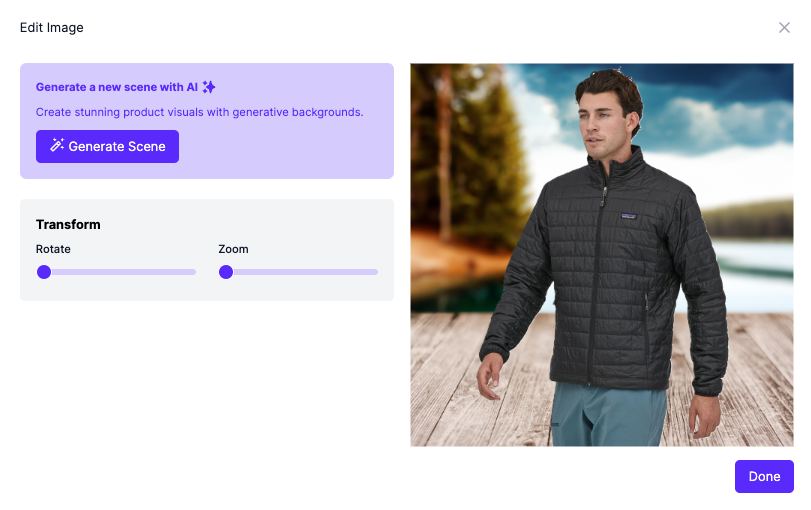
Voila! Your product with its new AI-generated background scene should now be in your graphic.
[](https://static.hsstatic.net/BlogImporterAssetsUI/ex/missing-image.png)
*Want to try it out? Explore the designs at* [*Grid and Pixel*](https://www.gridandpixel.com/?utm_source=helpcenter&utm_medium=gridandpixel)*.*
[.png?width=129&height=20&name=Grid%20%26%20Pixel%20Logo%20(1).png "Grid & Pixel Logo")](https://gridandpixel.com)
[mailto:support@gridandpixel.com](mailto:support@gridandpixel.com)
Copyright © 2026 Grid & Pixel, Inc. All rights reserved.