---
title: How to Edit Graphics Colors in Grid & Pixel
description: One of the easiest ways to transform any Grid & Pixel graphic into something that’s truly your own is changing the colors to match your brand or aestheti...
---
[Skip to content](https://help.gridandpixel.com/en-us/grid-and-pixel-help-center/how-to-tutorials/how-to-edit-graphics-colors-in-grid-pixel#main-content)
English - United States
Show submenu for translations
[.png?width=226&height=35&name=Grid%20%26%20Pixel%20Logo%20(1).png)](https://gridandpixel.com)
Open main navigation
Close main navigation
- English - United States
Show submenu for translations
Grid & Pixel Support
- There are no suggestions because the search field is empty.
1. [Grid & Pixel Help Center](https://help.gridandpixel.com/en-us/grid-and-pixel-help-center?hsLang=en-us)
2. [How-To Tutorials](https://help.gridandpixel.com/en-us/grid-and-pixel-help-center/how-to-tutorials?hsLang=en-us)
July 30, 2026
# How to Edit Graphics Colors in Grid & Pixel
## One of the easiest ways to transform any Grid & Pixel graphic into something that’s truly your own is changing the colors to match your brand or aesthetic. Here’s how you can quickly change the color of any graphic element or text in the Grid & Pixel app.
One of the easiest ways to transform any Grid & Pixel graphic into something that’s truly your own is changing the colors to match your brand or aesthetic. Here’s how you can quickly change the color of any graphic element or text in the Grid & Pixel app.
[Copy link](https://help.gridandpixel.com/how-to-tutorials/how-to-edit-graphics-colors-in-grid-pixel?hsLang=en-us#h_d597e20474)Editing graphic elements
[Copy link](https://help.gridandpixel.com/how-to-tutorials/how-to-edit-graphics-colors-in-grid-pixel?hsLang=en-us#h_84d1753ab3)1. Open the Colors tab
You’ll see a list of colors that can be edited. These often include button color, fill color, and stroke color, but vary depending on the graphic you’re customizing.
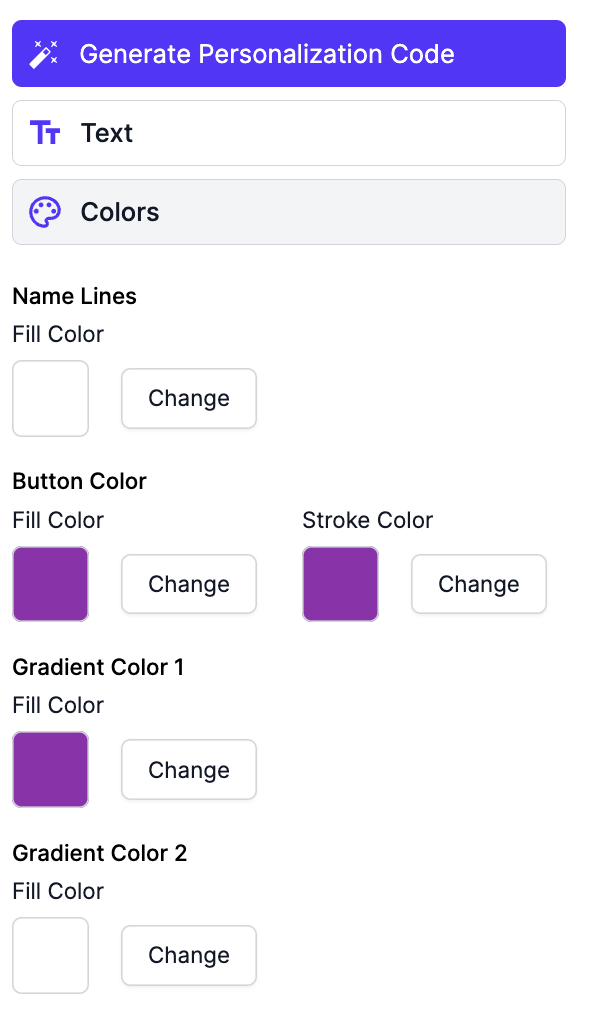
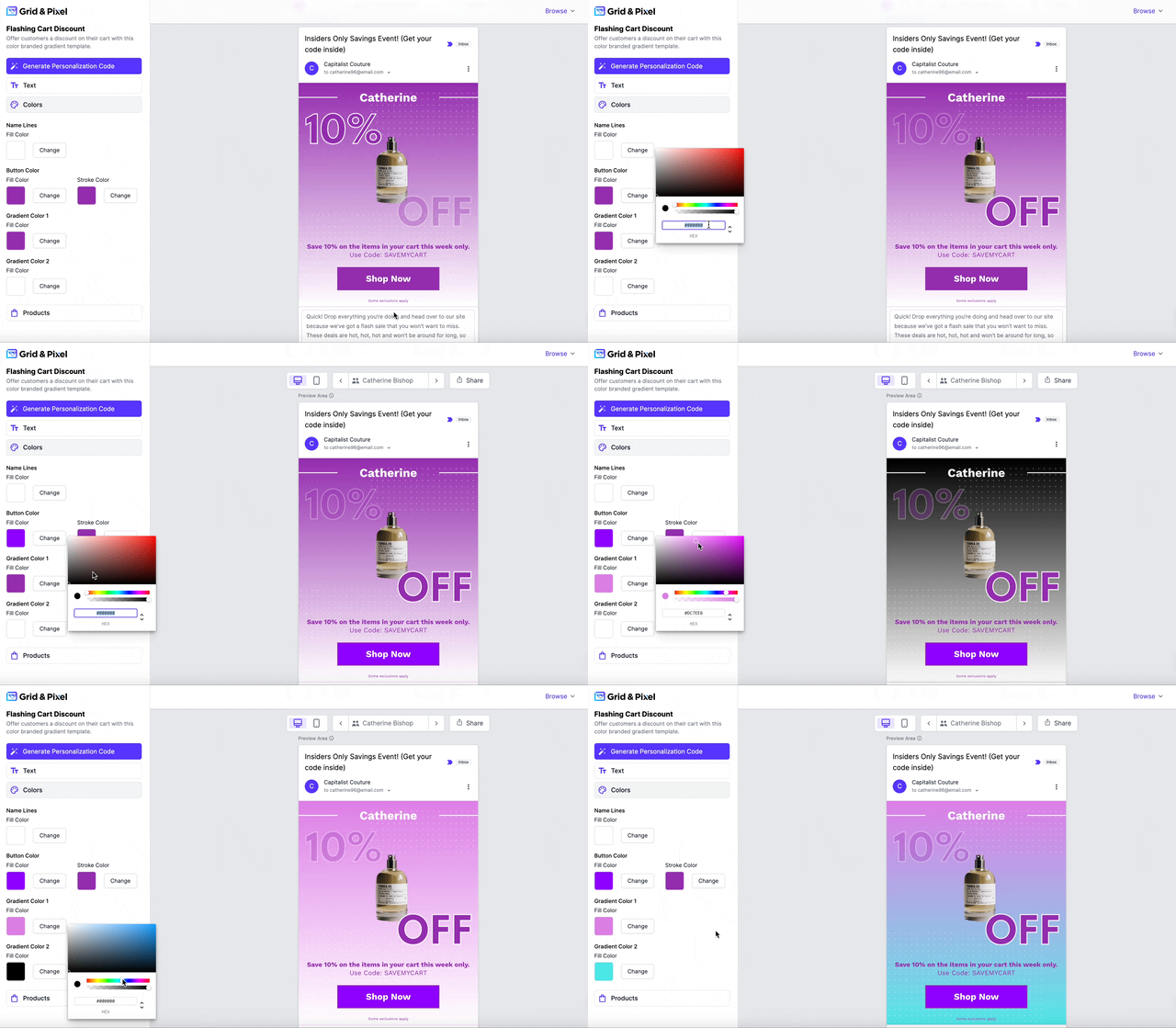
[Copy link](https://help.gridandpixel.com/how-to-tutorials/how-to-edit-graphics-colors-in-grid-pixel?hsLang=en-us#h_3cf3b5ef36)2. Click the Change button next to the color you want to edit.
[Copy link](https://help.gridandpixel.com/how-to-tutorials/how-to-edit-graphics-colors-in-grid-pixel?hsLang=en-us#h_9cecb17235)3. Pick your preferred color
You can enter a hexcode or use the color picker to select a color of your choice. Your edits will be updated in real time.
[Copy link](https://help.gridandpixel.com/how-to-tutorials/how-to-edit-graphics-colors-in-grid-pixel?hsLang=en-us#h_c83b19f447)Editing text color
[Copy link](https://help.gridandpixel.com/how-to-tutorials/how-to-edit-graphics-colors-in-grid-pixel?hsLang=en-us#h_a4fd859afc)1. Open the Text tab

[Copy link](https://help.gridandpixel.com/how-to-tutorials/how-to-edit-graphics-colors-in-grid-pixel?hsLang=en-us#h_5c15a7afd4)2. Find the text field you’d like to change
If you’d like to change the color of any text, simply click the purple underlined A icon next to any text field.
You’ll see a modal pop up that allows you to input a specific hexcode directly, or you can select a color from the color picker.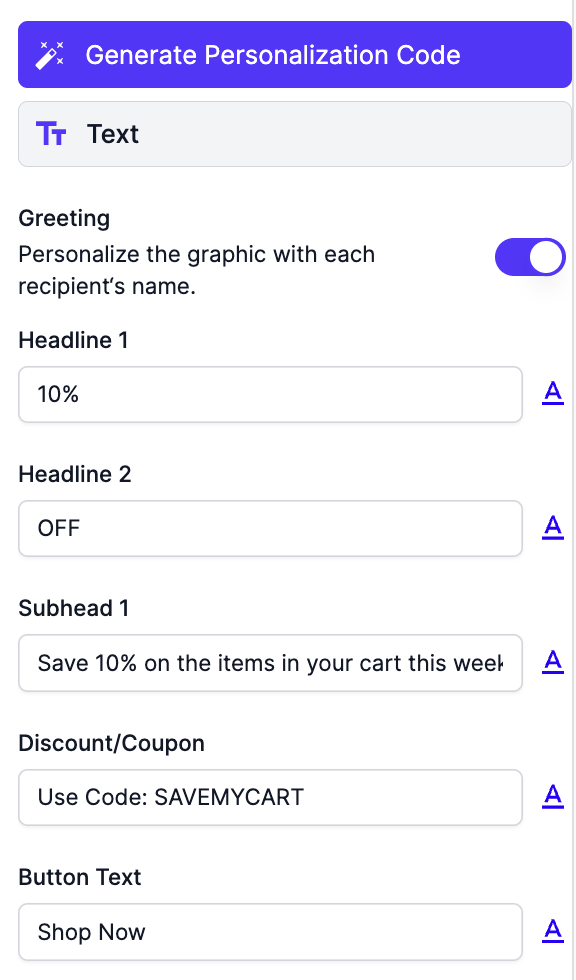
*Add your brand colors to* [*Grid and Pixel*](https://www.gridandpixel.com/?utm_source=helpcenter&utm_medium=gridandpixel) *designs today.*
[.png?width=129&height=20&name=Grid%20%26%20Pixel%20Logo%20(1).png "Grid & Pixel Logo")](https://gridandpixel.com)
[mailto:support@gridandpixel.com](mailto:support@gridandpixel.com)
Copyright © 2026 Grid & Pixel, Inc. All rights reserved.