---
title: How to Add Grid & Pixel Graphics to Your Sendlane Emails
description: Add a personalized Grid & Pixel graphic to a Sendlane email. Follow the publishing steps and check the design in your email before sending.
---
[Skip to content](https://help.gridandpixel.com/en-us/grid-and-pixel-help-center/how-to-tutorials/how-to-add-grid-pixel-graphics-to-your-sendlane-emails#main-content)
English - United States
Show submenu for translations
[](https://gridandpixel.com)
Open main navigation
Close main navigation
- English - United States
Show submenu for translations
- [Contact support](https://help.gridandpixel.com/en-us/grid-and-pixel-help-center/contact-us/contact-us)
[Contact support](https://help.gridandpixel.com/en-us/grid-and-pixel-help-center/contact-us/contact-us?hsLang=en-us)
Grid & Pixel Help Center
- There are no suggestions because the search field is empty.
1. [Grid & Pixel Help Center](https://help.gridandpixel.com/en-us/grid-and-pixel-help-center?hsLang=en-us)
2. [Email, SMS & Design](https://help.gridandpixel.com/en-us/grid-and-pixel-help-center/email-sms-design?hsLang=en-us)
November 24, 2026
# How to Add Grid & Pixel Graphics to Your Sendlane Emails
## Generate the embed for Sendlane, insert it in the email and preview the personalized graphic with the intended data.
There’s a lot to love about [Grid and Pixel](https://www.gridandpixel.com/?utm_source=helpcenter&utm_medium=gridandpixel)’s personalized email graphics, but we think the easy implementation is something you’ll really adore.
It only takes *seconds* to add your customized graphic to your customer engagement platform. Plus, if you use Sendlane, those email graphics are powered by an AI product recommendation engine that will analyze where the graphic is added and choose the most relevant products and destination links for each recipient based on prior behavior, purchase history, demographics, and more.
Here’s all you need to do:
### 1. Generate your code snippet
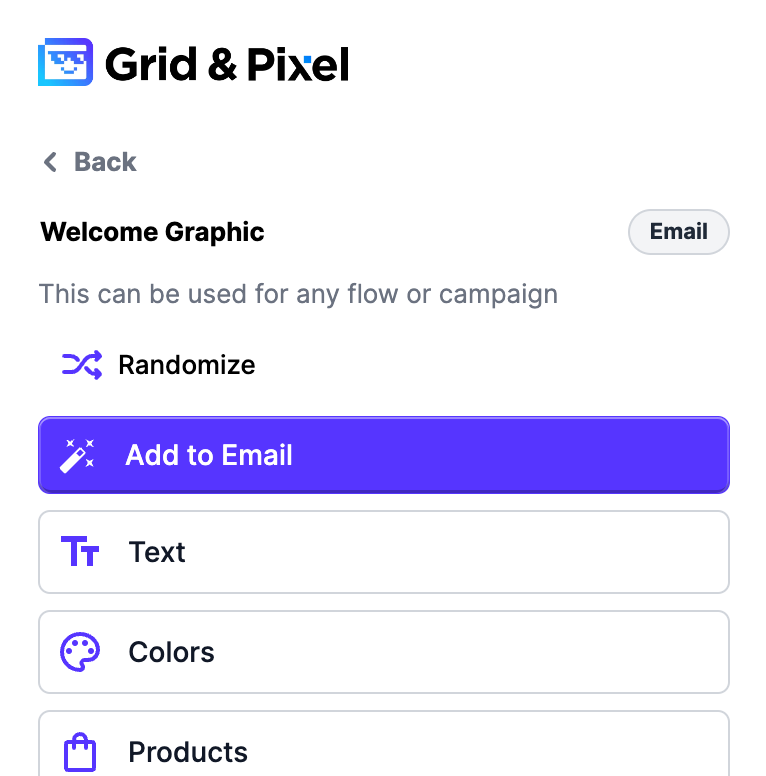
When you’ve customized your graphic and are ready to add it to your email, click the purple **Add to Email** button at the top-left of the graphic editor.
### 2. Pick where you’ll be adding the graphic.
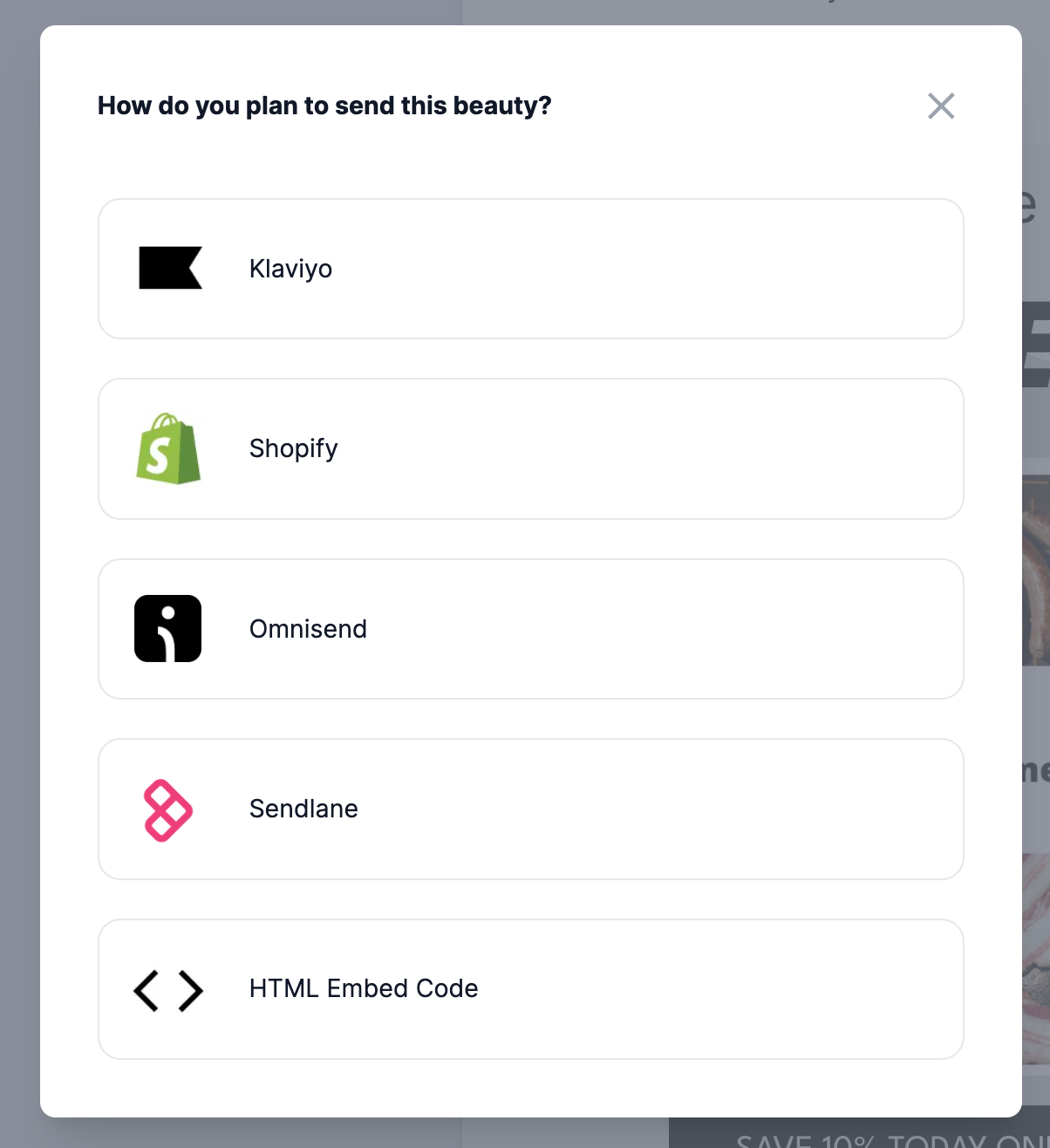
Choose **Sendlane** if you’re using its drag-and-drop editor.
3\. Copy the code snippet
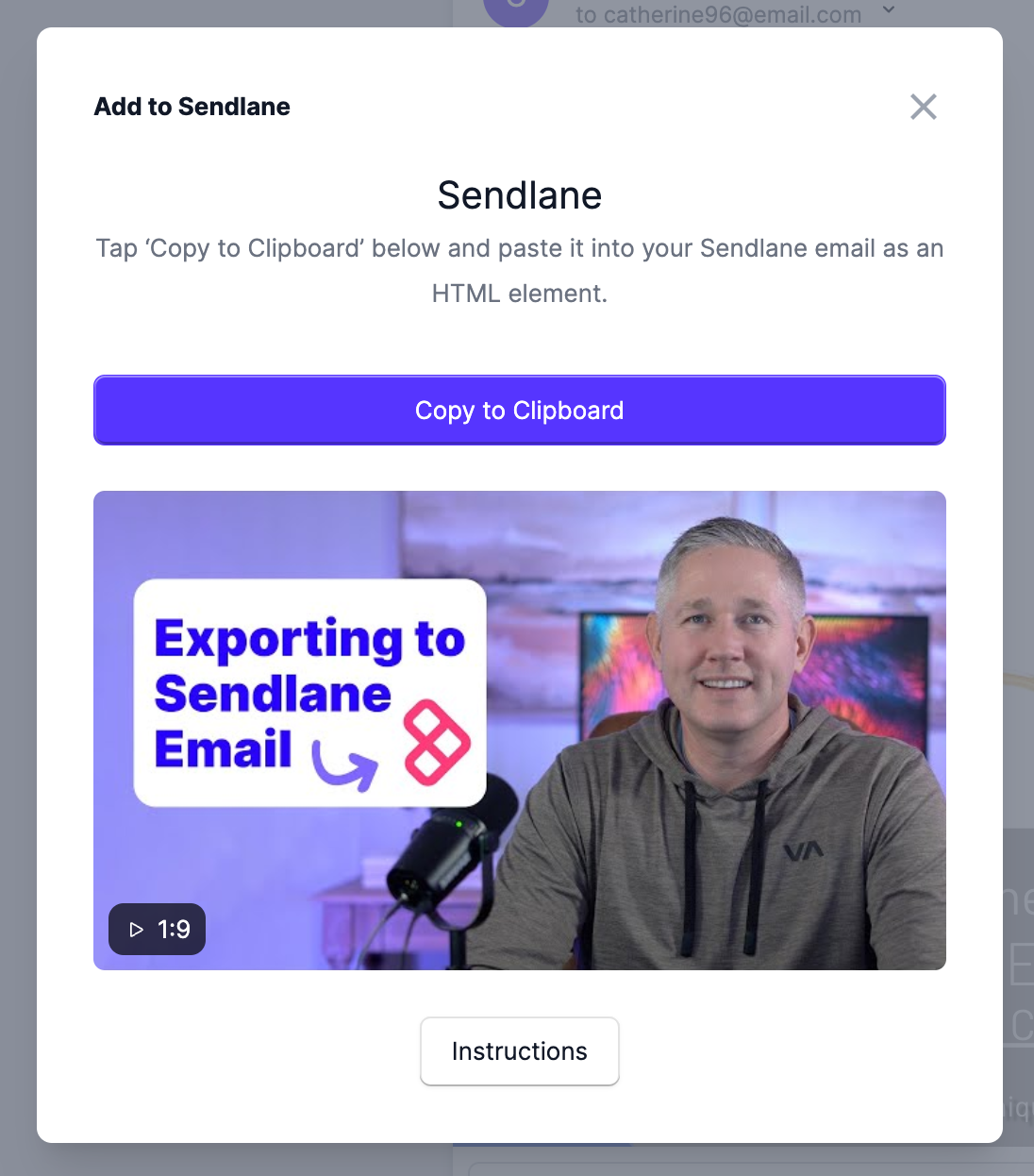
Click **Copy to Clipboard** to copy the snippet.
### 4. Paste the code snippet
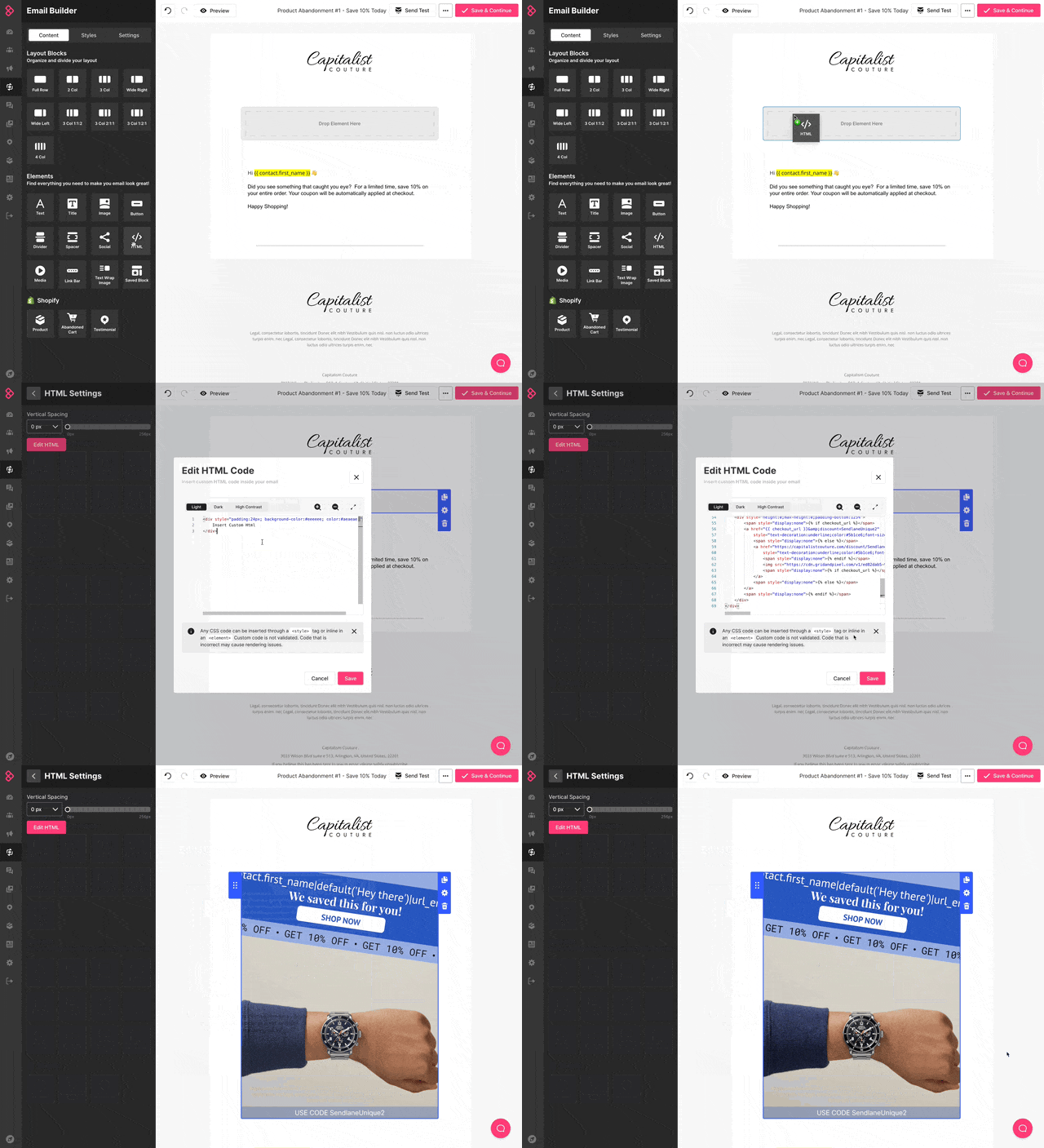
Open the email in the **Campaign** or **Automation** that you want to update inside your Sendlane account.
Add an **HTML** element (as part of a full row layout block). Paste the code snippet. Voila: You’ll see the graphic in Sendlane!
### 5. Preview and test
Hit the **Preview** button to review the graphic with an example of real customer data.
You can also send yourself a test email, but because Sendlane isn’t using real-time data in the Test Sends, you will see default language and imagery (possibly a blank product image) until the email actually sends. You could send yourself a real email to confirm it’s working as you’d like, but this is expected behavior during the preview and test phase.
[](https://gridandpixel.com)
[Contact Grid & Pixel support](https://help.gridandpixel.com/en-us/grid-and-pixel-help-center/contact-us/contact-us?hsLang=en-us)
[TikTok Shop tools](https://www.gridandpixel.com/tiktok) · [Klaviyo welcome flows](https://www.gridandpixel.com/welcome-series) · [AI email for Klaviyo](https://www.gridandpixel.com/ai-email-mcp)
[mailto:support@gridandpixel.com](mailto:support@gridandpixel.com)
Copyright © 2026 Grid & Pixel, Inc. All rights reserved.