---
title: How to Add Grid & Pixel Graphics to Your Omnisend Emails
description: There’s a lot to love about Grid and Pixel’s personalized email graphics, but we think the easy implementation is something you’ll really adore.It only takes...
---
[Skip to content](https://help.gridandpixel.com/en-us/grid-and-pixel-help-center/how-to-tutorials/how-to-add-grid-pixel-graphics-to-your-omnisend-emails#main-content)
English - United States
Show submenu for translations
[.png?width=226&height=35&name=Grid%20%26%20Pixel%20Logo%20(1).png)](https://gridandpixel.com)
Open main navigation
Close main navigation
- English - United States
Show submenu for translations
Grid & Pixel Support
- There are no suggestions because the search field is empty.
1. [Grid & Pixel Help Center](https://help.gridandpixel.com/en-us/grid-and-pixel-help-center?hsLang=en-us)
2. [How-To Tutorials](https://help.gridandpixel.com/en-us/grid-and-pixel-help-center/how-to-tutorials?hsLang=en-us)
July 30, 2026
# How to Add Grid & Pixel Graphics to Your Omnisend Emails
## There’s a lot to love about Grid and Pixel’s personalized email graphics, but we think the easy implementation is something you’ll really adore.
There’s a lot to love about [Grid and Pixel](https://www.gridandpixel.com/?utm_source=helpcenter&utm_medium=gridandpixel)’s personalized email graphics, but we think the easy implementation is something you’ll really adore.
It only takes *seconds* to add your customized graphic to your customer engagement platform. Plus, if you use Omnisend, those email graphics are powered by an AI product recommendation engine that will analyze where the graphic is added and choose the most relevant products and destination links for each recipient based on prior behavior, purchase history, demographics, and more.
Here’s all you need to do:
## [Copy link](https://help.gridandpixel.com/how-to-tutorials/how-to-add-grid-pixel-graphics-to-your-omnisend-emails?hsLang=en-us#h_1f3e6585b9)1. Generate your code snippet
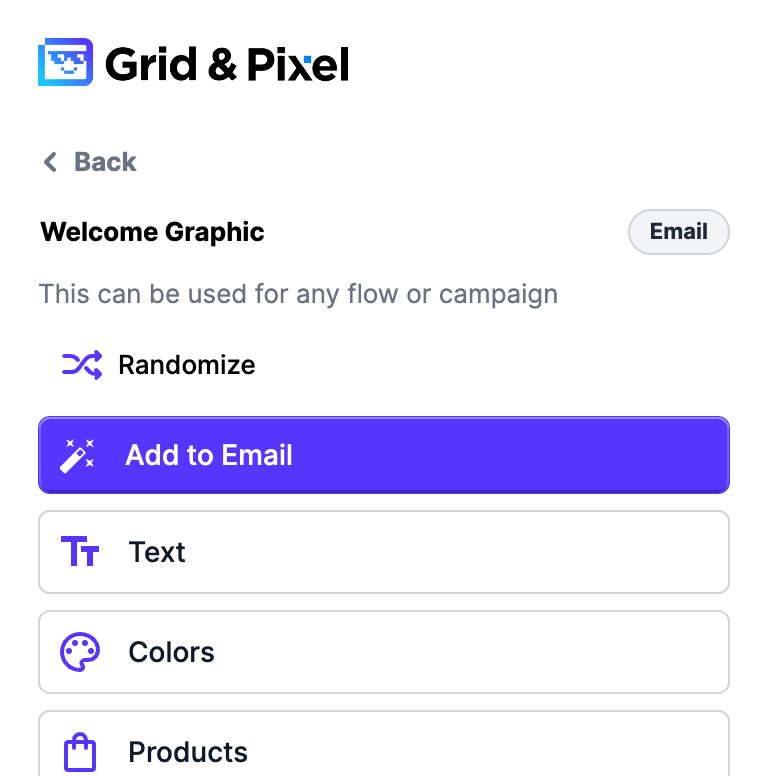
When you’ve customized your graphic and are ready to add it to your email, click the purple **Add to Email** button at the top-left of the graphic editor.
## [Copy link](https://help.gridandpixel.com/how-to-tutorials/how-to-add-grid-pixel-graphics-to-your-omnisend-emails?hsLang=en-us#h_8b500efded)2. Pick where you’ll be adding the graphic
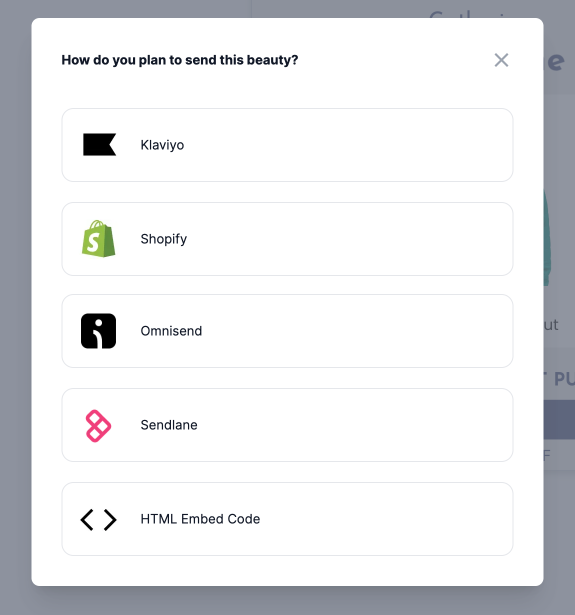
Choose **Omnisend** if you’re using its drag-and-drop editor.
## [Copy link](https://help.gridandpixel.com/how-to-tutorials/how-to-add-grid-pixel-graphics-to-your-omnisend-emails?hsLang=en-us#h_63f910b5aa)3. Copy the code snippet
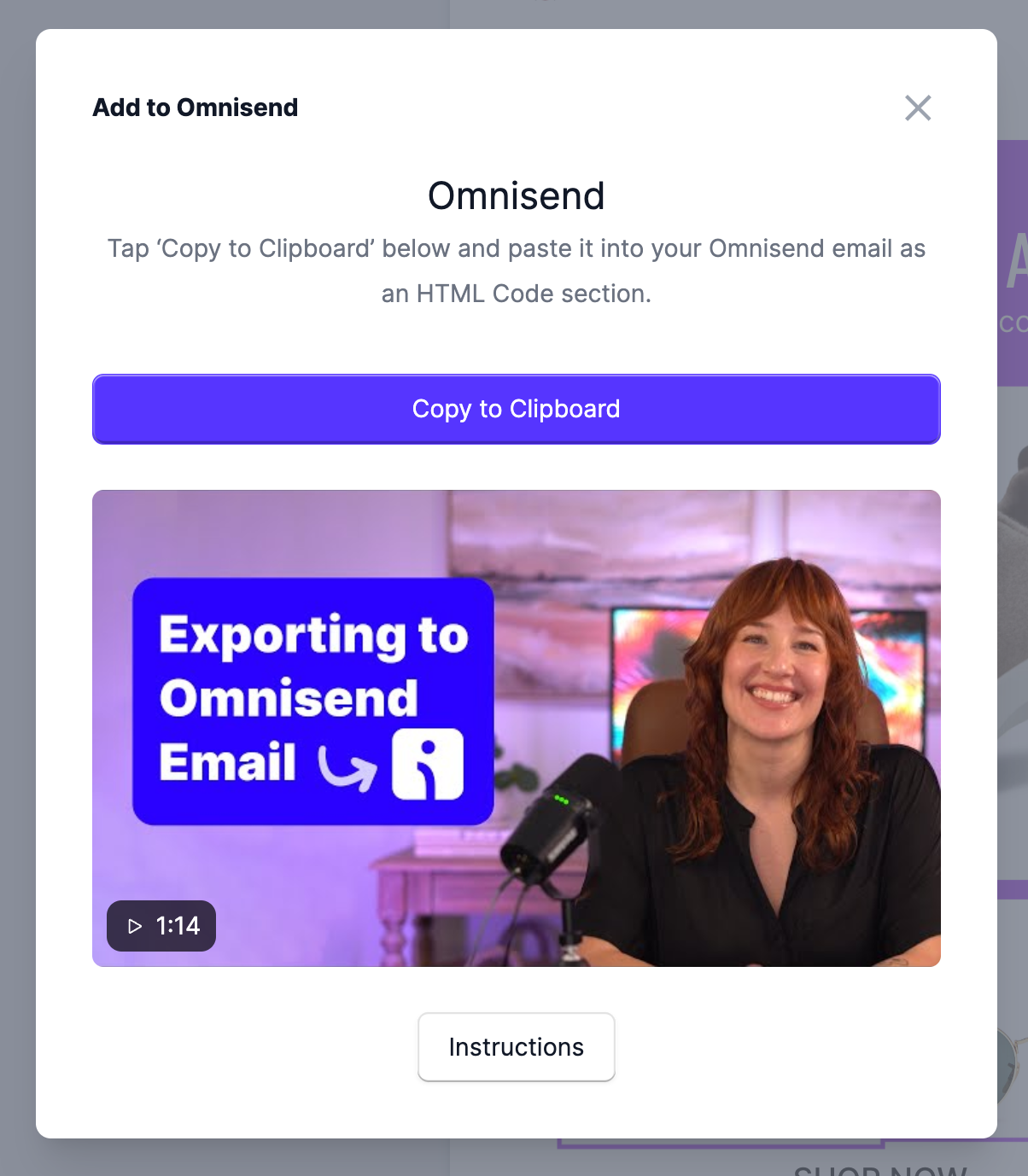
Click **Copy to Clipboard** to copy the snippet.
## [Copy link](https://help.gridandpixel.com/how-to-tutorials/how-to-add-grid-pixel-graphics-to-your-omnisend-emails?hsLang=en-us#h_6e69b1687f)4. Paste the code snippet
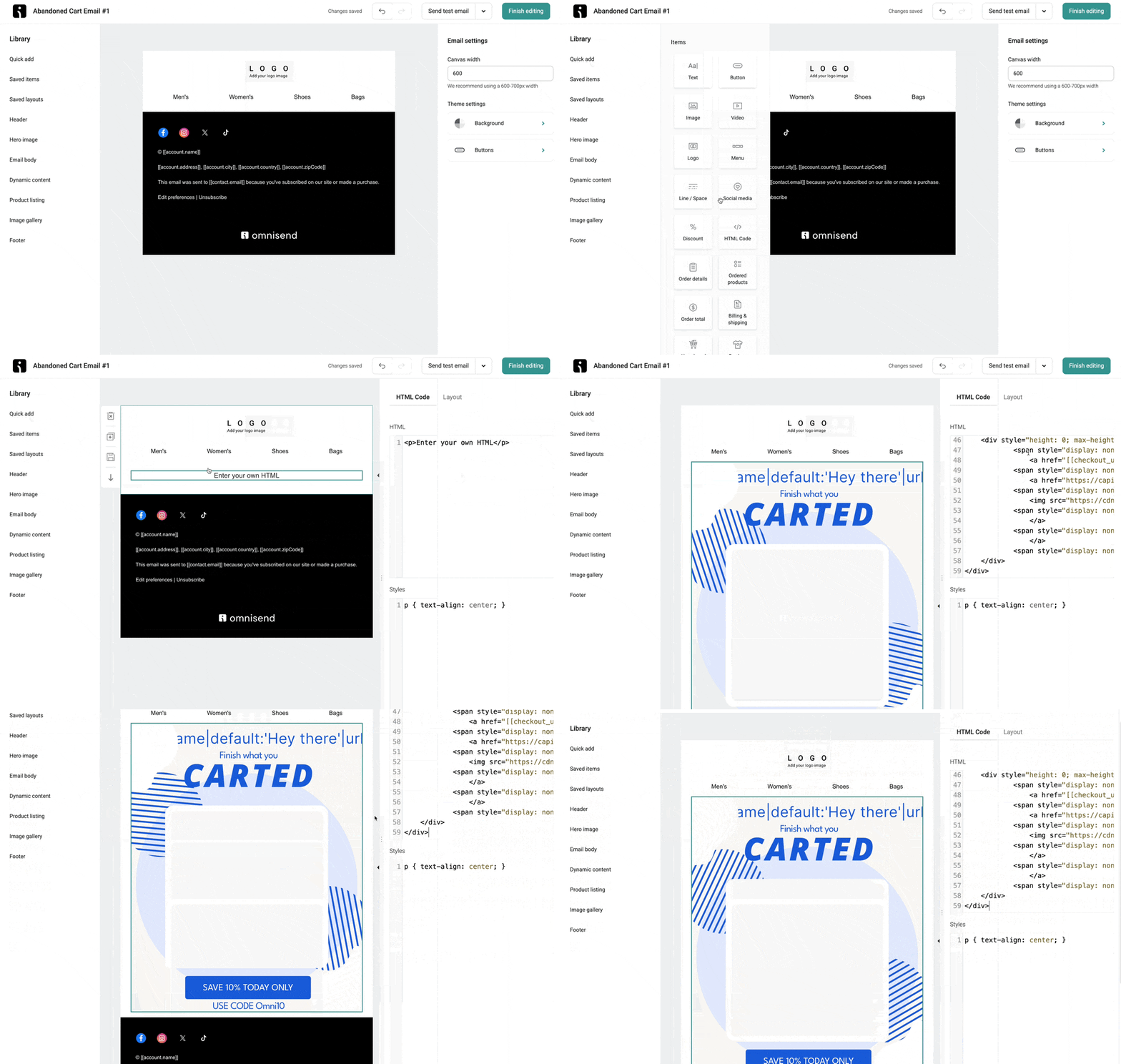
Open the email in the **Campaign** or **Automation** that you want to update inside your Omnisend account.
Add an **HTML Code** section. Paste the code snippet. Voila: You’ll see the graphic in Omnisend!
## [Copy link](https://help.gridandpixel.com/how-to-tutorials/how-to-add-grid-pixel-graphics-to-your-omnisend-emails?hsLang=en-us#h_5e9f14df28)5. Adjust the block padding
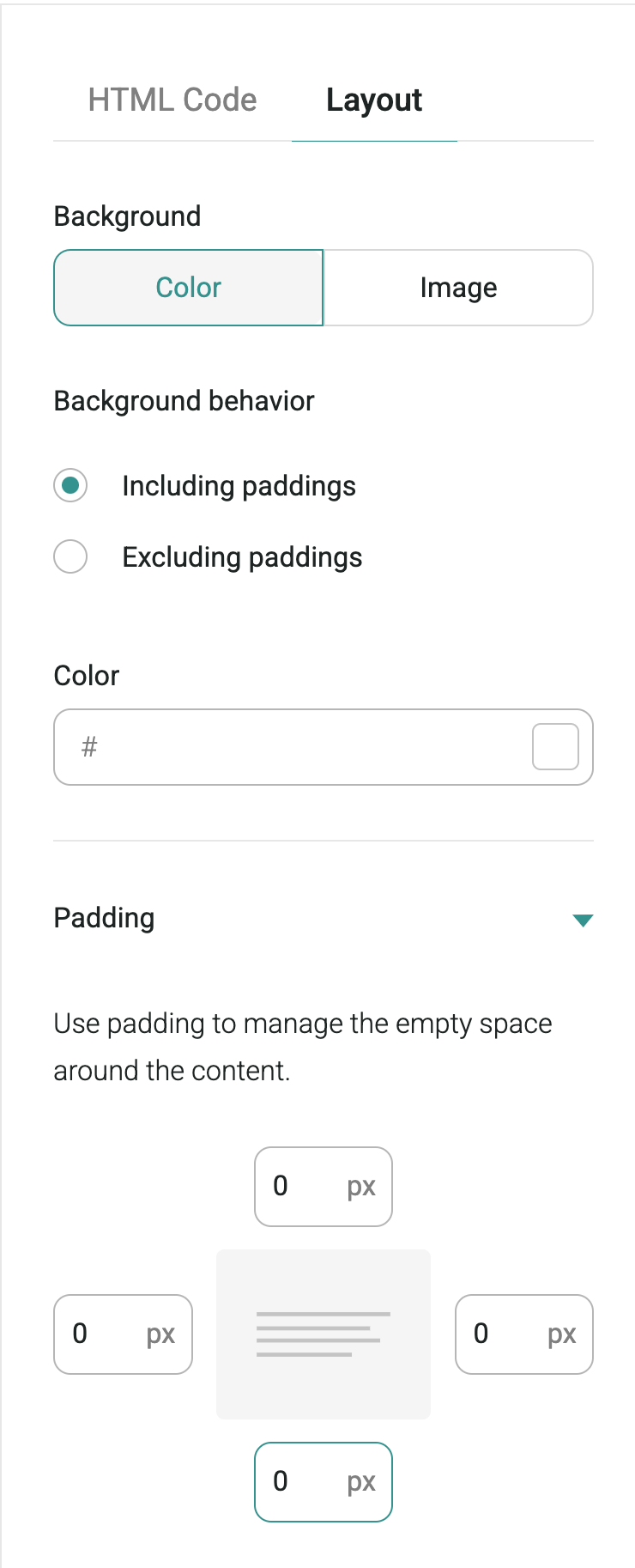
Omnisend adds default padding to HTML Code sections, so while you are still on the HTML Code section, tab over to **Layout** on the right side and set your padding to 0px so the graphic goes to the edge of your email.
## [Copy link](https://help.gridandpixel.com/how-to-tutorials/how-to-add-grid-pixel-graphics-to-your-omnisend-emails?hsLang=en-us#h_72b0d61d78)6. Preview and test
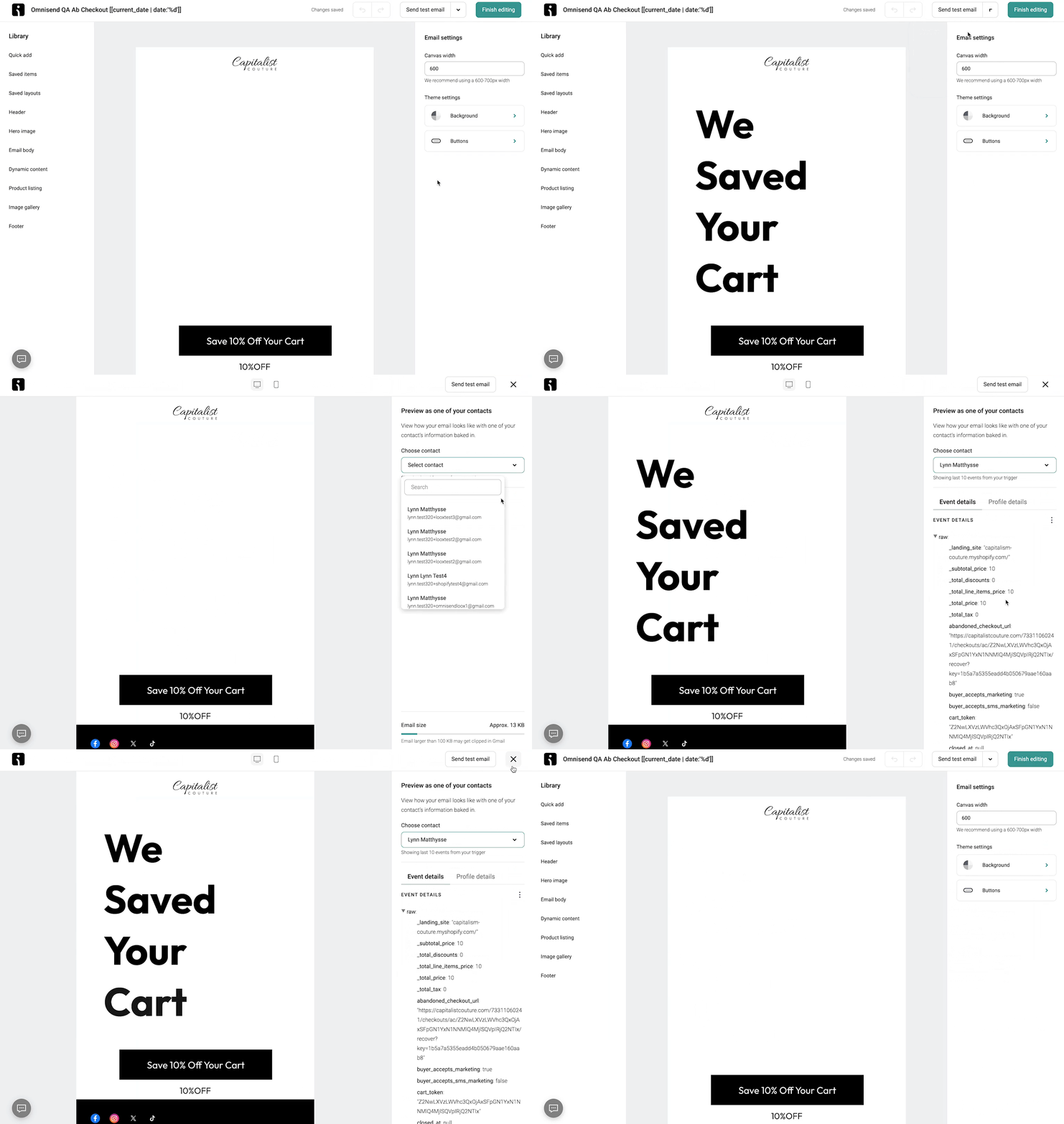
You may not see actual products in your drag & drop editor after placing your graphic, but Omniend now allows you to preview your email with real customer data. Simply select 'Preview' from the 'Send test email' drop down. Once you are in your preview view, you can select the customer on the right panel to preview.
## [Copy link](https://help.gridandpixel.com/how-to-tutorials/how-to-add-grid-pixel-graphics-to-your-omnisend-emails?hsLang=en-us#h_599f6dc3fb)Copy link
[.png?width=129&height=20&name=Grid%20%26%20Pixel%20Logo%20(1).png "Grid & Pixel Logo")](https://gridandpixel.com)
[mailto:support@gridandpixel.com](mailto:support@gridandpixel.com)
Copyright © 2026 Grid & Pixel, Inc. All rights reserved.