---
title: How to Add Grid & Pixel Graphics to Your Klaviyo SMS Campaigns & Flows with Live Embed Code
description: Adding a personalized graphic to your SMS campaigns and flows is simple with Grid and Pixel. Once you’ve customized your SMS graphic in the Grid & Pixel ...
---
[Skip to content](https://help.gridandpixel.com/en-us/grid-and-pixel-help-center/how-to-tutorials/how-to-add-grid-pixel-graphics-to-your-klaviyo-sms-campaigns-flows-with-live-embed-code#main-content)
English - United States
Show submenu for translations
[.png?width=226&height=35&name=Grid%20%26%20Pixel%20Logo%20(1).png)](https://gridandpixel.com)
Open main navigation
Close main navigation
- English - United States
Show submenu for translations
Grid & Pixel Support
- There are no suggestions because the search field is empty.
1. [Grid & Pixel Help Center](https://help.gridandpixel.com/en-us/grid-and-pixel-help-center?hsLang=en-us)
2. [How-To Tutorials](https://help.gridandpixel.com/en-us/grid-and-pixel-help-center/how-to-tutorials?hsLang=en-us)
November 4, 2026
# How to Add Grid & Pixel Graphics to Your Klaviyo SMS Campaigns & Flows with Live Embed Code
Adding a personalized graphic to your SMS campaigns and flows is simple with [Grid and Pixel](https://www.gridandpixel.com/?utm_source=helpcenter&utm_medium=gridandpixel). Once you’ve customized your SMS graphic in the Grid & Pixel app, follow these steps to export it into Klaviyo.
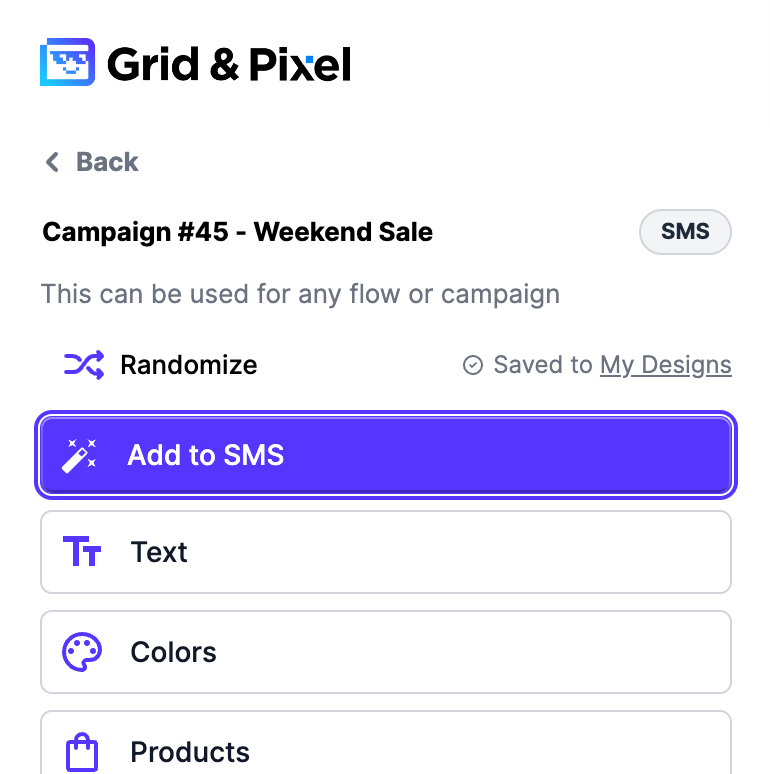
**1. Generate your code snippet**
Click the purple “Add to SMS” button
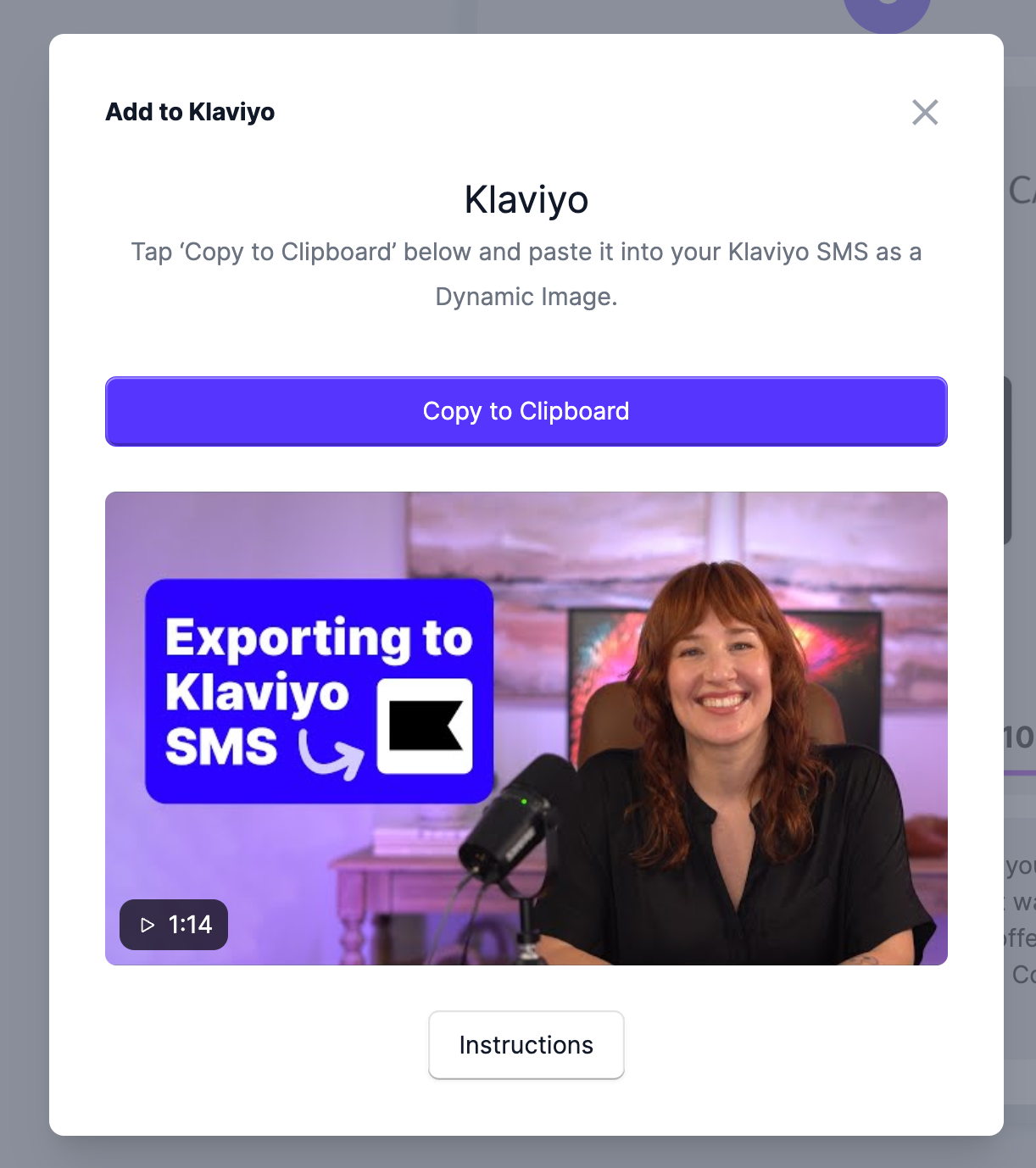
### [2. Copy your code snippet](https://help.gridandpixel.com/how-to-tutorials/how-to-add-grid-pixel-graphics-to-your-klaviyo-sms-campaigns-flows-with-live-embed-code?hsLang=en-us#h_1fcbe630df)
Click “Copy to Clipboard” to copy the code snippet.
### 3. Paste your code snippet into Klaviyo
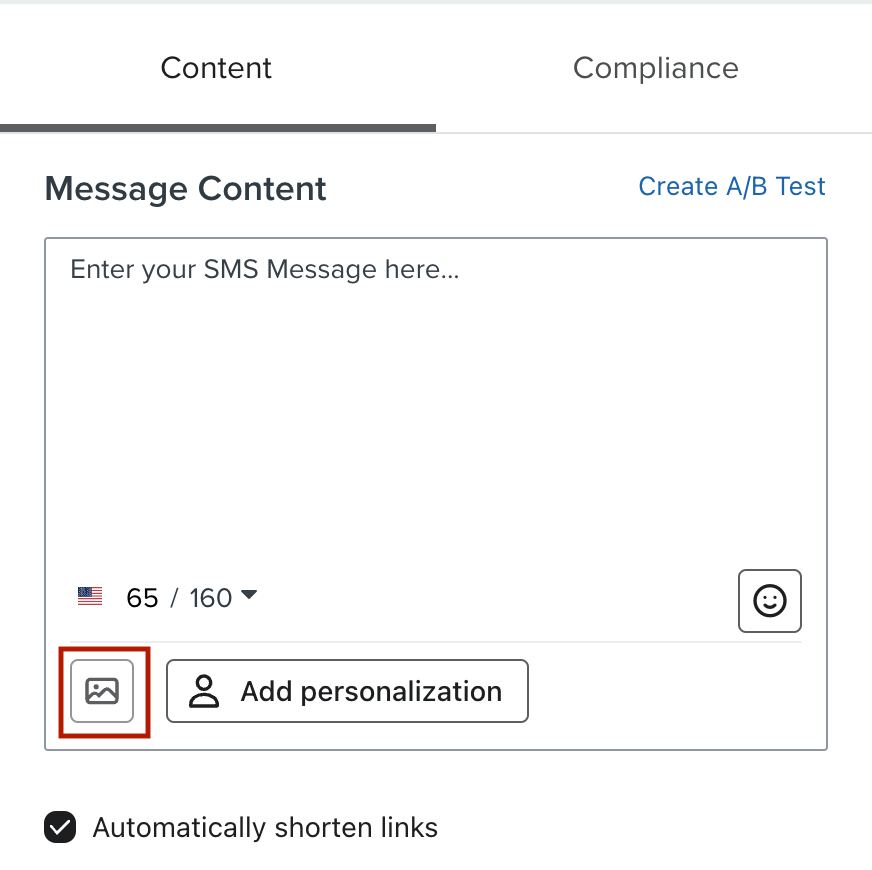
Open the campaign or flow with your SMS message.
Click the **Image Icon**
Select **Dynamic Image** from the list on the left side of the modal.
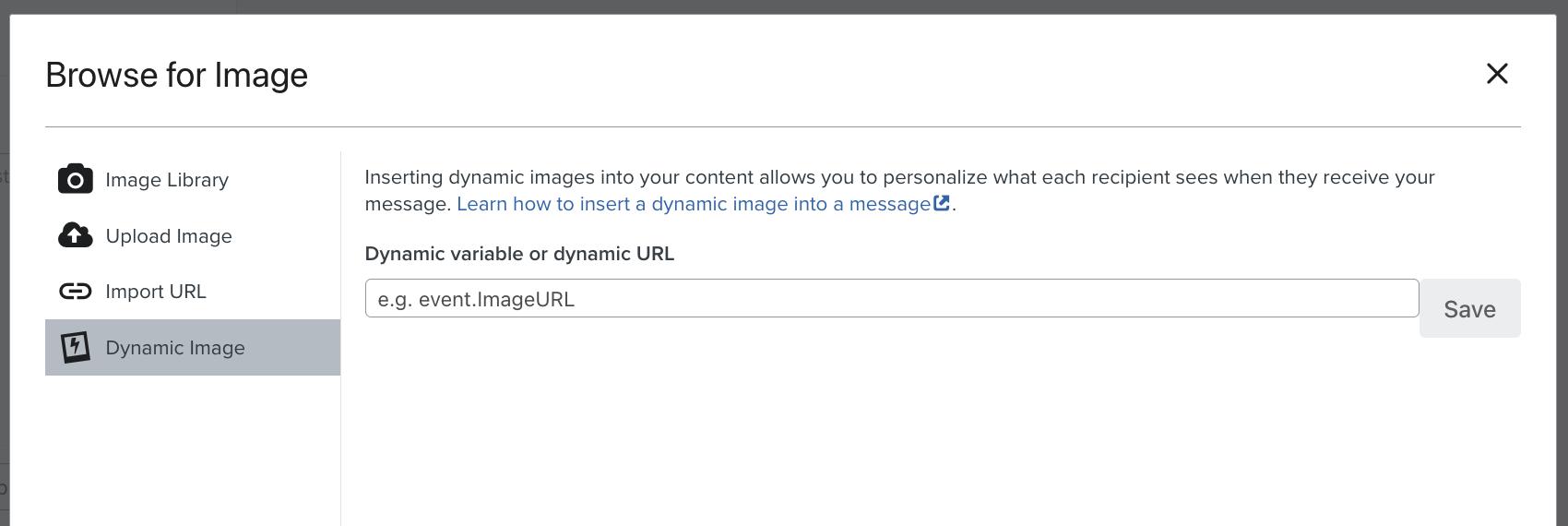
Paste your snippet into the **Dynamic variable or dynamic URL field**.
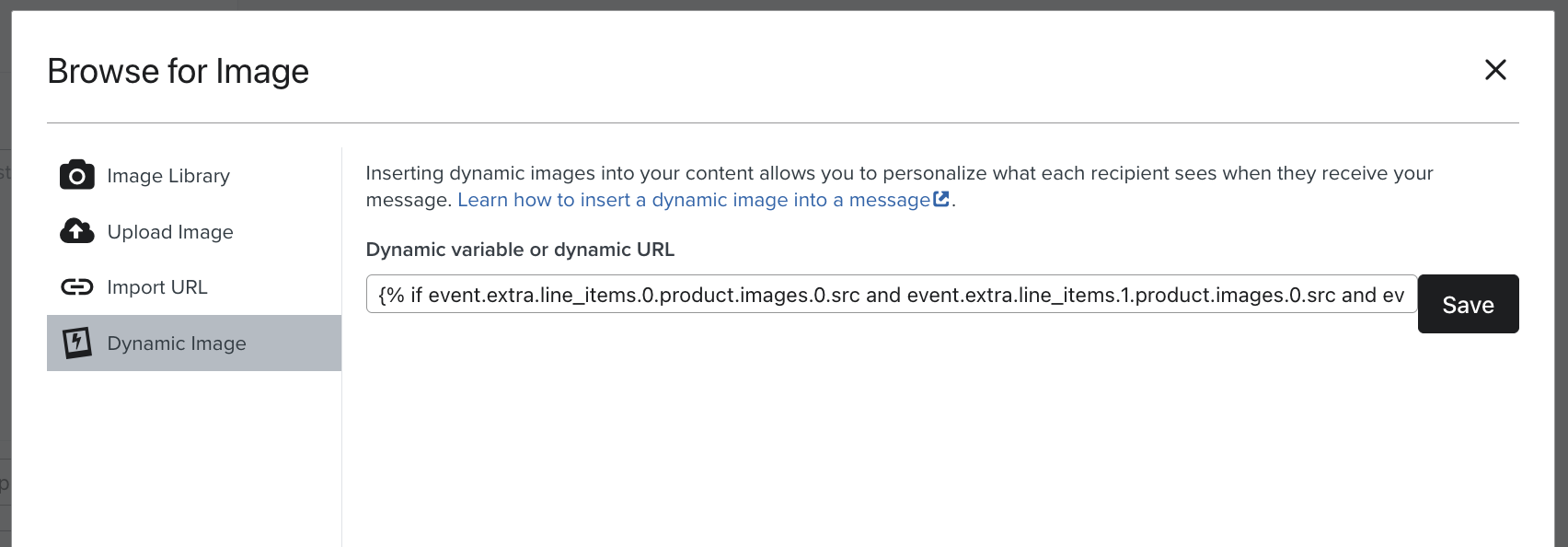
Click **Save**.
### 4. Preview and test
You should see your graphic appear in the mobile preview.
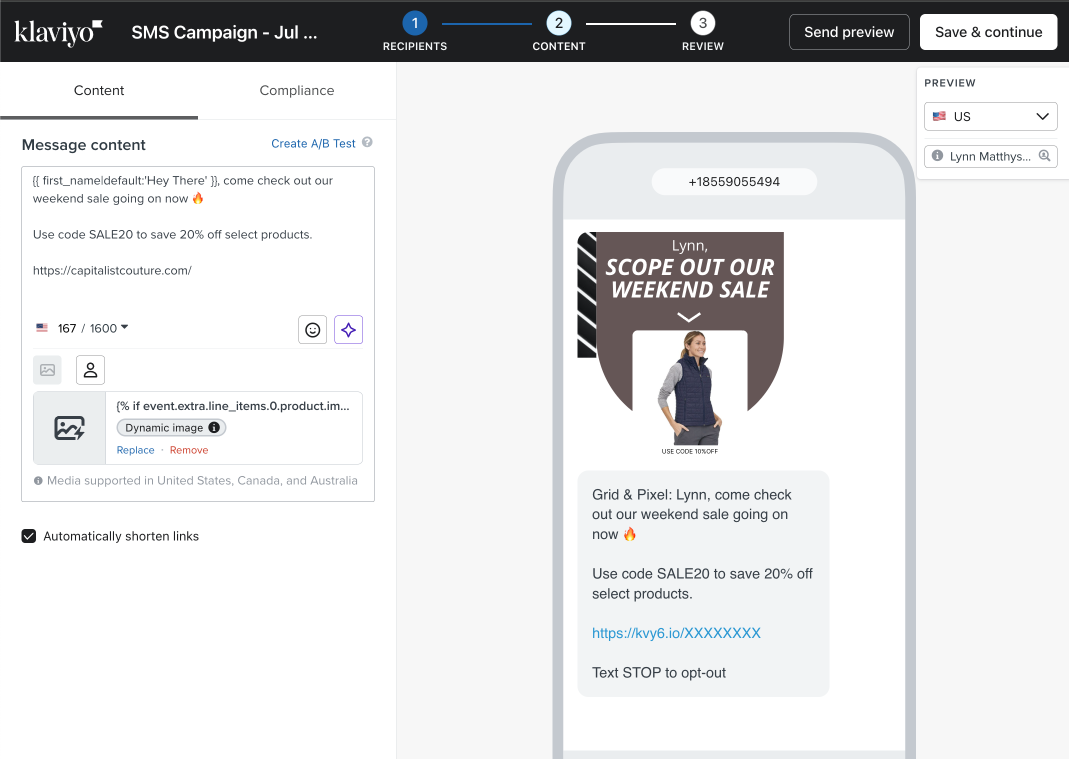
Don't forget to add extra personalization, such as customer name, and special links in your Message Content box!
If you’re in a **Campaign**, you can choose different profiles in the Preview window in the top-right to see how it appears to different customers.
If you’re in a **Flow**, you’ll see eligible subscribers appear in the Preview window in the top-right. You can cycle through them to see how the imagery changes based on our AI engine recommendations.
### Plan and review the complete message
Before adding media, decide [how email and SMS should work together](https://help.gridandpixel.com/en-us/grid-and-pixel-help-center/shopify-email-sms-campaign-templates?hsLang=en-us). After building the message, use the [launch-readiness guide for email and SMS templates](https://help.gridandpixel.com/en-us/grid-and-pixel-help-center/production-ready-email-sms-templates?hsLang=en-us) to review the content, links, personalization, and workflow.
[.png?width=129&height=20&name=Grid%20%26%20Pixel%20Logo%20(1).png "Grid & Pixel Logo")](https://gridandpixel.com)
[mailto:support@gridandpixel.com](mailto:support@gridandpixel.com)
Copyright © 2026 Grid & Pixel, Inc. All rights reserved.