---
title: Connecting Your Klaviyo Account to Grid & Pixel
description: Explore key benefits Grid & Pixel's Klaviyo Integration & learn how to connect your account.
---
[Skip to content](https://help.gridandpixel.com/en-us/grid-and-pixel-help-center/getting-started/connecting-your-klaviyo-account-to-grid-pixel#main-content)
English - United States
Show submenu for translations
[](https://gridandpixel.com)
Open main navigation
Close main navigation
- English - United States
Show submenu for translations
- [Contact support](https://help.gridandpixel.com/en-us/grid-and-pixel-help-center/contact-us/contact-us)
[Contact support](https://help.gridandpixel.com/en-us/grid-and-pixel-help-center/contact-us/contact-us?hsLang=en-us)
Grid & Pixel Help Center
- There are no suggestions because the search field is empty.
1. [Grid & Pixel Help Center](https://help.gridandpixel.com/en-us/grid-and-pixel-help-center?hsLang=en-us)
2. [Start Here & Integrations](https://help.gridandpixel.com/en-us/grid-and-pixel-help-center/start-here-integrations?hsLang=en-us)
November 24, 2026
# Connecting Your Klaviyo Account to Grid & Pixel
## Authorize the intended Klaviyo account from Integrations, then use the connected-account status and a design preview to verify the shop.
- 
Klaviyo Users: Connect your Klaviyo account to Grid & Pixel to take advantage of key integration features.
### Benefits of the Integration:
- **Klaviyo Universal Content:** Automatically sync all email designs to your Klaviyo Universal Content. Easily drag and drop these into any flow or campaign right inside the Klaviyo editor.
- **Import Image Library:** Send any graphic from Grid & Pixel to your Image Library inside Klaviyo.
- **Grid & Pixel Segments:** When you connect your account, you will get 20+ customized segments perfect for flows, list cleaning and campaigns.
How to Connect Your Klaviyo Account to Grid & Pixel
On your Settings page, tap ‘Connect to Klaviyo’ under Integrations. Once you are logged into Klaviyo, tap ‘Allow’ to enable the integration. Your Settings page will reflect your connected account when the integration is successful.
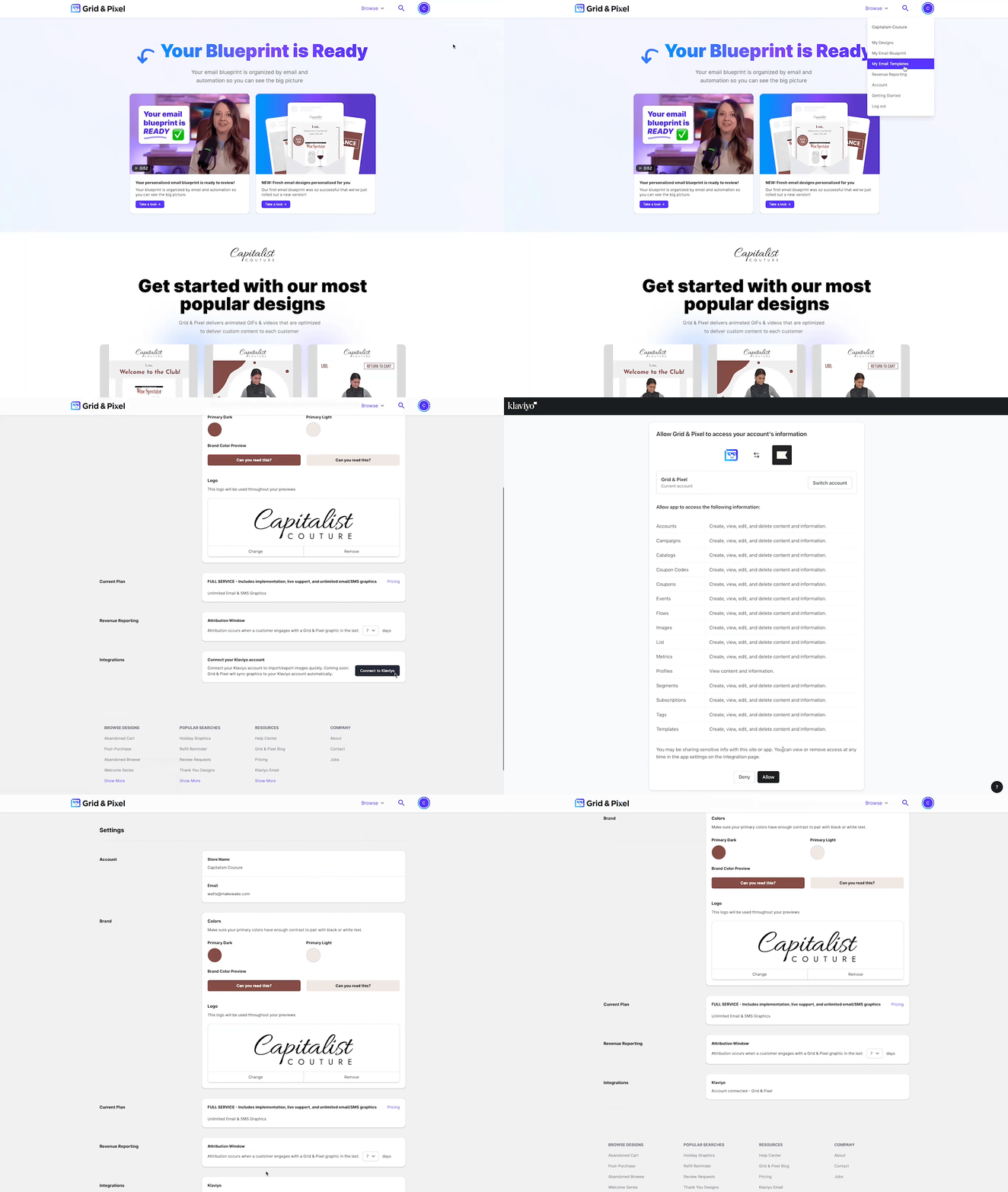
That's it! Your Klaviyo account is now connected to Grid & Pixel and you can take advantage of our Klaviyo features.
Connecting your Klaviyo account is recommended to take advantage of key integration features, however, an integration is not required to copy & paste your Live Embed Code into Klaviyo.
### What to build after connecting
Once your account is connected, plan [a reusable email template library](https://help.gridandpixel.com/en-us/grid-and-pixel-help-center/reusable-email-templates?hsLang=en-us) and review [what to look for in Klaviyo templates](https://help.gridandpixel.com/en-us/grid-and-pixel-help-center/klaviyo-email-templates-shopify?hsLang=en-us) before producing campaigns.
For automated messages, see [how to design a Shopify abandoned cart flow](https://help.gridandpixel.com/en-us/grid-and-pixel-help-center/shopify-abandoned-cart-emails?hsLang=en-us). If you also use Omnisend, compare [the platform-specific design workflows](https://help.gridandpixel.com/en-us/grid-and-pixel-help-center/klaviyo-omnisend-email-design-support?hsLang=en-us).
### Verify the connected store before building a campaign
In Grid & Pixel, open Settings for the Shopify store you intend to use. Under Integrations, choose Connect to Klaviyo. Read the account name on the Klaviyo authorization screen before selecting Allow. Return to Grid & Pixel and check that Settings now identifies the connected account.
If you manage two brands, open a known design from this shop and check the corresponding item in the intended Klaviyo account. Seeing the design in the other brand is a reason to stop before scheduling. If authorization failed, check which Klaviyo account was signed in and whether that user can approve the requested access.
### Check which workspace is connected
- [Fix an assistant opening the wrong store](https://help.gridandpixel.com/en-us/grid-and-pixel-help-center/what-should-i-do-if-an-assistant-opens-the-wrong-grid-pixel-store?hsLang=en-us)
[](https://gridandpixel.com)
[Contact Grid & Pixel support](https://help.gridandpixel.com/en-us/grid-and-pixel-help-center/contact-us/contact-us?hsLang=en-us)
[TikTok Shop tools](https://www.gridandpixel.com/tiktok) · [Klaviyo welcome flows](https://www.gridandpixel.com/welcome-series) · [AI email for Klaviyo](https://www.gridandpixel.com/ai-email-mcp)
[mailto:support@gridandpixel.com](mailto:support@gridandpixel.com)
Copyright © 2026 Grid & Pixel, Inc. All rights reserved.