---
title: How to Manage Your Scheduled Campaigns from Grid & Pixel
description: "Watch the short video below to see how to view and edit your scheduled campaigns from Grid & Pixel.Step-by-Step GuideStep 1: Open Grid & Pixel in Sho..."
---
[Skip to content](https://help.gridandpixel.com/en-us/grid-and-pixel-help-center/email-templates-campaigns/how-to-manage-your-scheduled-campaigns-from-grid-pixel#main-content)
English - United States
Show submenu for translations
[.png?width=226&height=35&name=Grid%20%26%20Pixel%20Logo%20(1).png)](https://gridandpixel.com)
Open main navigation
Close main navigation
- English - United States
Show submenu for translations
Grid & Pixel Support
- There are no suggestions because the search field is empty.
1. [Grid & Pixel Help Center](https://help.gridandpixel.com/en-us/grid-and-pixel-help-center?hsLang=en-us)
2. [Email Templates & Campaigns](https://help.gridandpixel.com/en-us/grid-and-pixel-help-center/email-templates-campaigns?hsLang=en-us)
July 30, 2026
# How to Manage Your Scheduled Campaigns from Grid & Pixel
## Watch the short video below to see how to view and edit your scheduled campaigns from Grid & Pixel.
Watch the short video below to see how to view and edit your scheduled campaigns from Grid & Pixel.
## [Copy link](https://help.gridandpixel.com/email-templates-campaigns/how-to-manage-your-scheduled-campaigns-from-grid-pixel?hsLang=en-us#h_476f211bdd)Step-by-Step Guide
## [Copy link](https://help.gridandpixel.com/email-templates-campaigns/how-to-manage-your-scheduled-campaigns-from-grid-pixel?hsLang=en-us#h_476f211bdd-1)Step 1: Open Grid & Pixel in Shopify
- Inside your Shopify admin, open the **Grid & Pixel app**.
- From the left-hand navigation, click **My Designs**.
- Here, you’ll see a list of all your emails.
## [Copy link](https://help.gridandpixel.com/email-templates-campaigns/how-to-manage-your-scheduled-campaigns-from-grid-pixel?hsLang=en-us#h_33c163ae3c)Step 2: Identify Scheduled Campaigns
Look for campaigns marked with a **blue “Scheduled” badge** — these are the campaigns that Grid & Pixel has already created and scheduled for you in Klaviyo.
## [Copy link](https://help.gridandpixel.com/email-templates-campaigns/how-to-manage-your-scheduled-campaigns-from-grid-pixel?hsLang=en-us#h_3be395c892)Step 3: Open the Campaign You Want to Edit
- Click into the campaign you’d like to update.
- Since it’s already scheduled, it will be **locked for editing**.
- Just tap the **Edit** button to unlock it.
## [Copy link](https://help.gridandpixel.com/email-templates-campaigns/how-to-manage-your-scheduled-campaigns-from-grid-pixel?hsLang=en-us#h_813bdd524a)Step 4: Make Your Updates
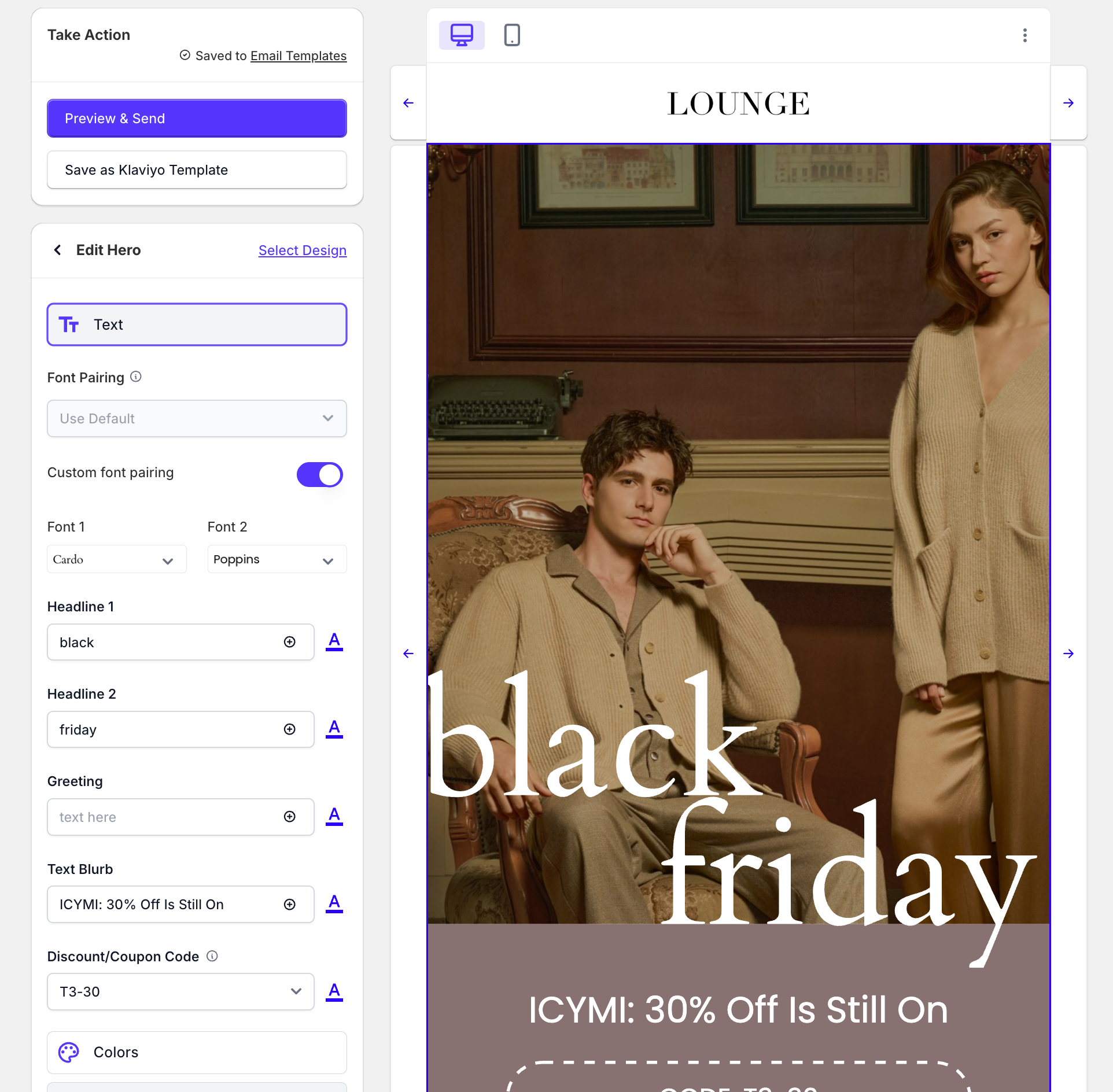
You’re now in **edit mode** — feel free to update your text, swap images, or adjust product blocks.
You have full control over your content while keeping your original design intact.
[](https://static.hsstatic.net/BlogImporterAssetsUI/ex/missing-image.png)
## [Copy link](https://help.gridandpixel.com/email-templates-campaigns/how-to-manage-your-scheduled-campaigns-from-grid-pixel?hsLang=en-us#h_2151b1ca2f)Step 5: Preview Your Changes
Once your edits are complete, preview your email in one of two ways:
Tap the **triple-dot menu** and select **Preview in Browser**,
or go to **Preview & Send → Send Test Email**, and enter your own email address.
## [Copy link](https://help.gridandpixel.com/email-templates-campaigns/how-to-manage-your-scheduled-campaigns-from-grid-pixel?hsLang=en-us#h_2a8181d314)Step 6: Review and Send Your Updated Campaign
If everything looks great, head to **Preview & Send** again.
Double-check your:
- **Subject line**
- **Audience**
- **Exclusions**
- **Send date**
Then click **Send Campaign** to send this to your Klaviyo account Campaigns tab.
Your updated campaign will automatically appear inside your **Klaviyo account**, fully scheduled and ready to send at the correct time.
## [Copy link](https://help.gridandpixel.com/email-templates-campaigns/how-to-manage-your-scheduled-campaigns-from-grid-pixel?hsLang=en-us#h_8c51258009)That’s It!
And that’s it! Your campaign is now scheduled and you’ve got full visibility and control if you ever want to make changes in the future.
We can’t wait to see your results!
[.png?width=129&height=20&name=Grid%20%26%20Pixel%20Logo%20(1).png "Grid & Pixel Logo")](https://gridandpixel.com)
[mailto:support@gridandpixel.com](mailto:support@gridandpixel.com)
Copyright © 2026 Grid & Pixel, Inc. All rights reserved.